 Feather
Everything Feather can do
Each part of the desktop in brief. Details, every shortcut and the fine print are in the guide.
Live glass and a familiar desktop
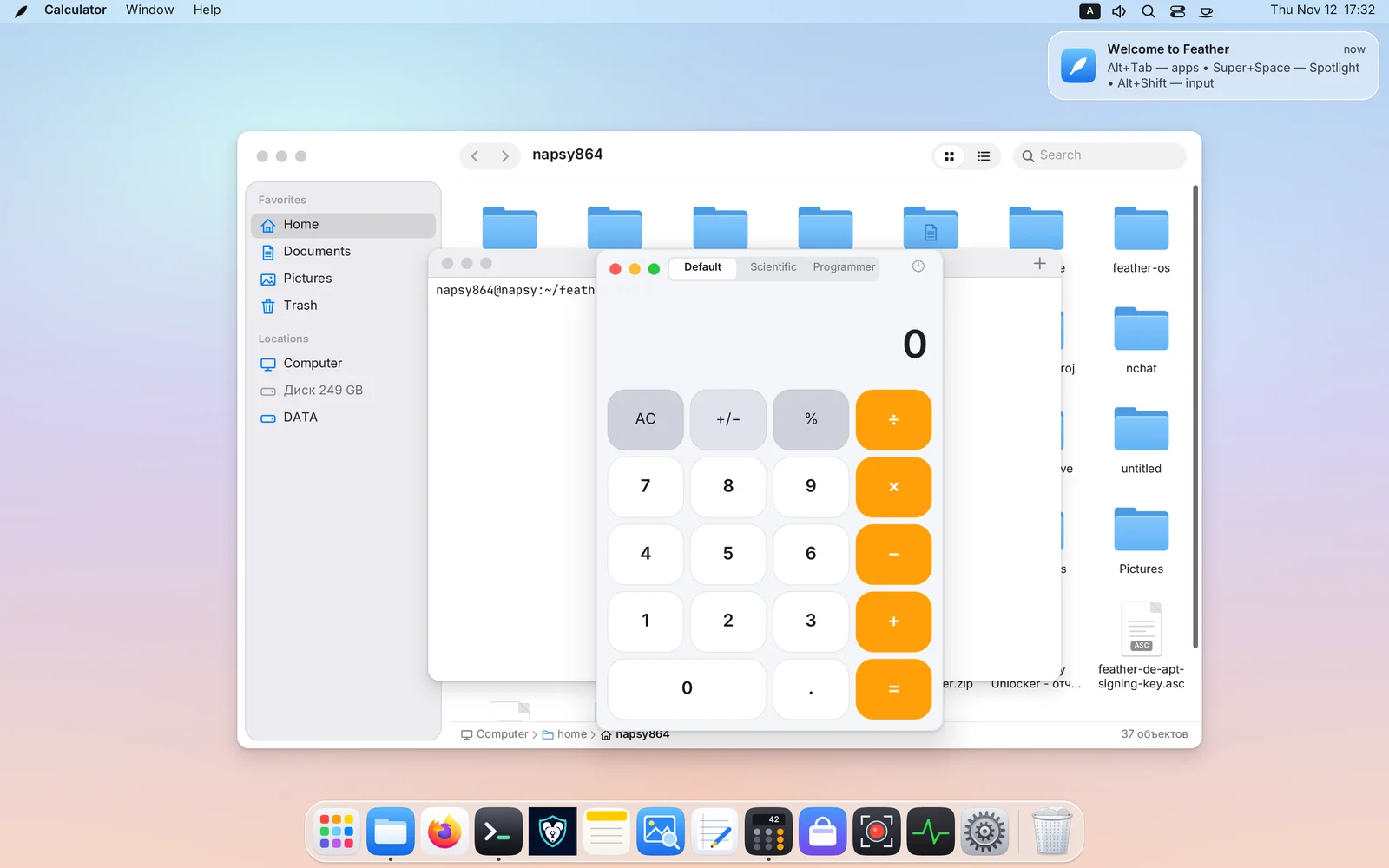
Menu bar on top, Dock below, icons on the wallpaper. Familiar from the first minute, and the first-run assistant helps pick a language, theme and layouts.
- Liquid Glass. Panels, drawers, menus and the Dock refract and blur the live picture beneath them on the GPU.
- 0% idle CPU. On a still frame the glass is not recomputed.
- Desktop icons. Files, folders and launchers: rubber-band selection, drag and drop, Trash.
- Six languages. English, Russian, Spanish, German, French and Chinese.
Global menus and Menu HUD
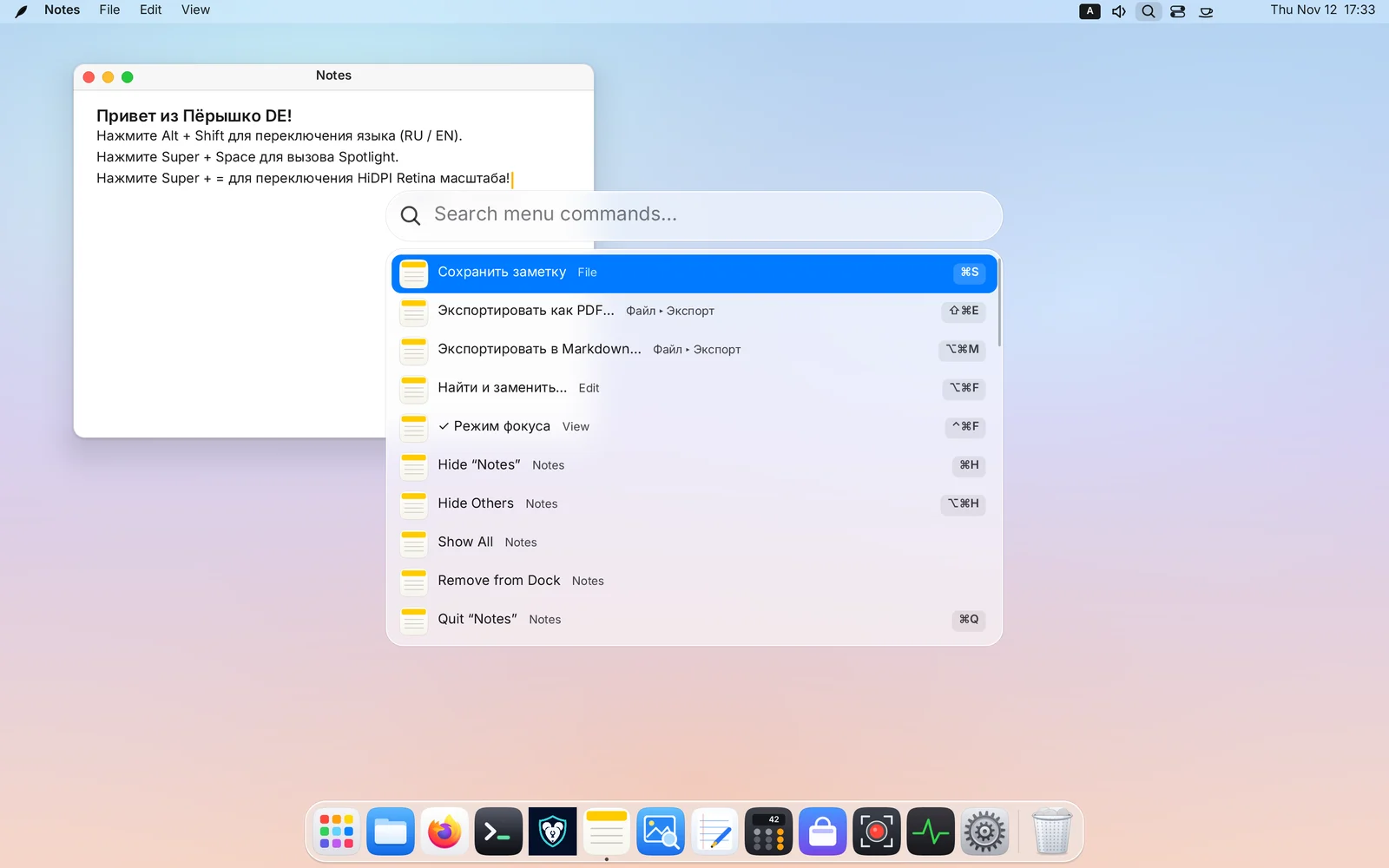
The active app’s menu lives in the top bar — for Qt, KDE and GTK. And you no longer hunt through submenus for a command.
- Menu HUD. Start typing and the menu tree unfolds into a flat list with paths and shortcuts.
- Fixes your layout. Typed in the wrong keyboard layout? It still finds the command.
- System tray. Icons for Telegram, Steam and VPN clients; extras tuck into an overflow button.
- Caffeine. A cup next to the clock keeps the screen awake.
- search menu commandsSuper+/
- lock the screenSuper+L
Dock, Launchpad, Spotlight and the App Ring
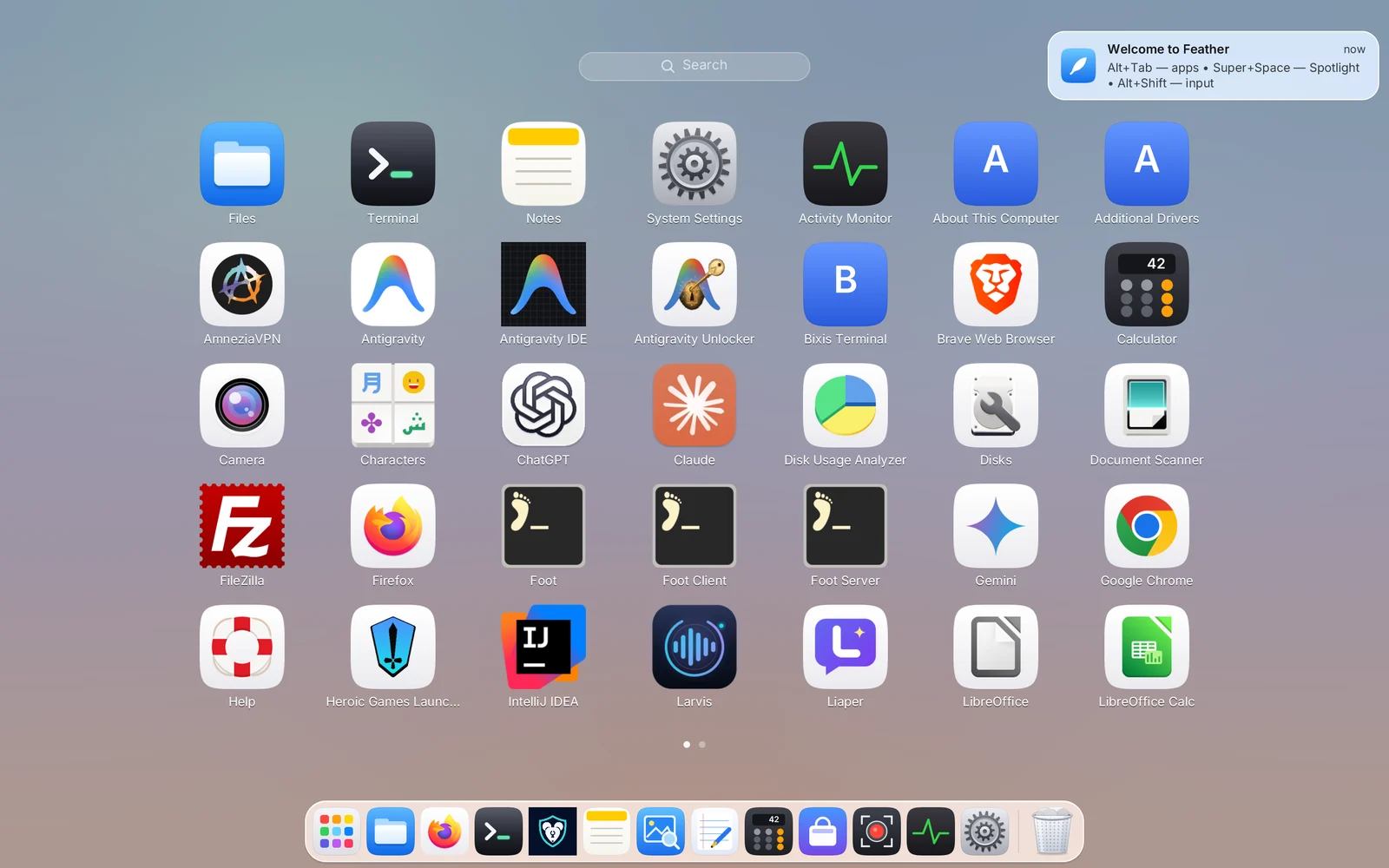
Four ways to reach an app — pick whichever is fastest for your hand.
- Dock. Magnification on hover, pin by dragging; bottom, left or right.
- Launchpad. A grid of every app, including Flatpak and Snap. Just start typing.
- Spotlight. Apps, windows, settings, notes, files and maths. No background indexers.
- App Ring. A short tap on Super puts running apps around the pointer.
- Clipboard and emoji. History lives only in memory and skips passwords.
- SpotlightSuper+Space
- LaunchpadSuper+A
- App RingSuper
- clipboard historySuper+Shift+V
- emojiSuper+.
Windows, snapping and Ghost PiP
Rounded corners and traffic lights on every window, even old apps. Window edges are easy to grab, even at 4K.
- Snapping. Halves and quarters at the screen edges and from the keyboard.
- Super + mouse. Drag a window from anywhere, resize with the right button.
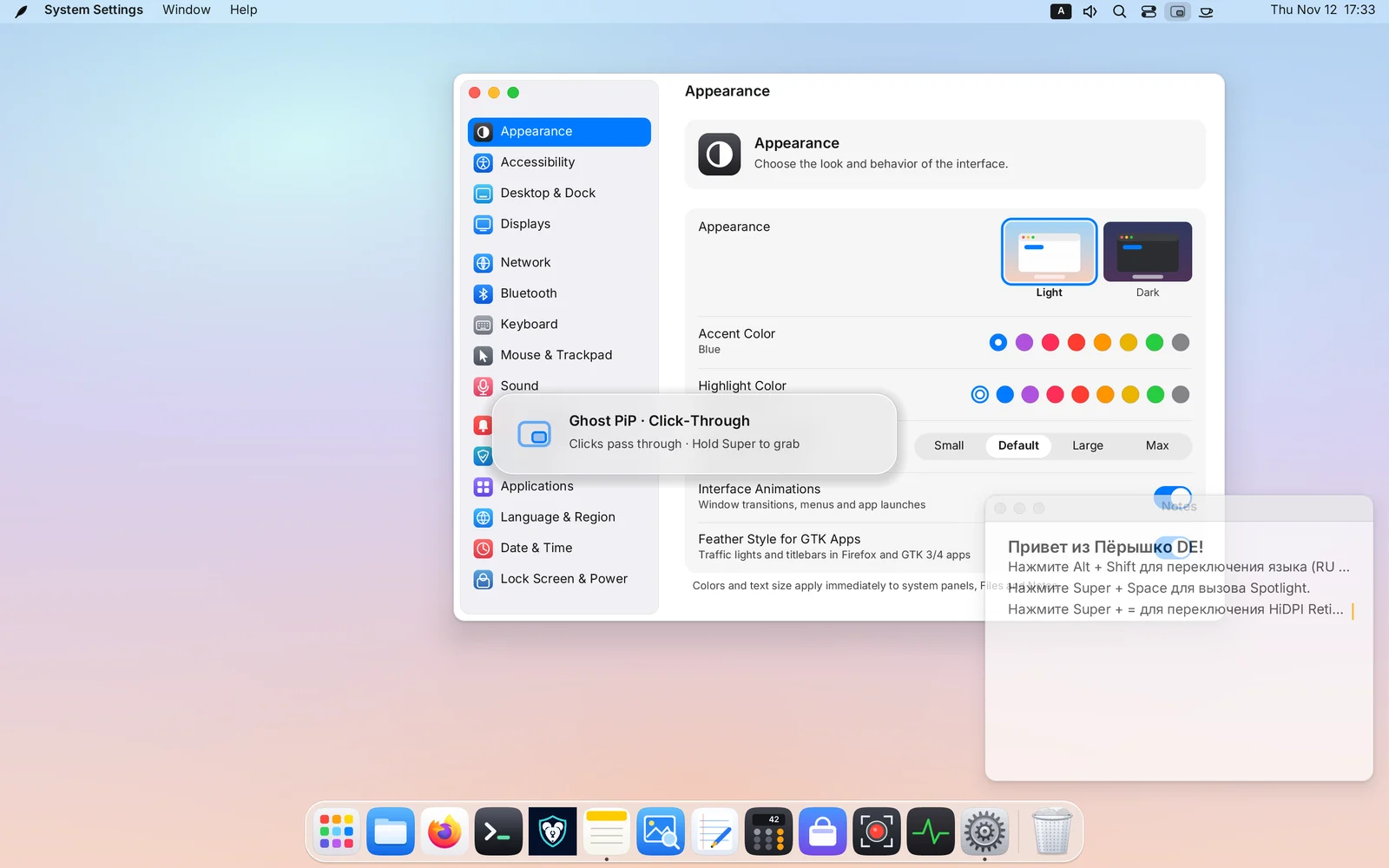
- Picture-in-Picture. Any window above every workspace, springing between corners.
- Ghost mode. The window turns translucent and passes clicks through: code right under a video.
- picture-in-pictureSuper+P
- ghost modeSuper+Alt+P
- half of the screenCtrl+Super+←
- app switcherAlt+Tab
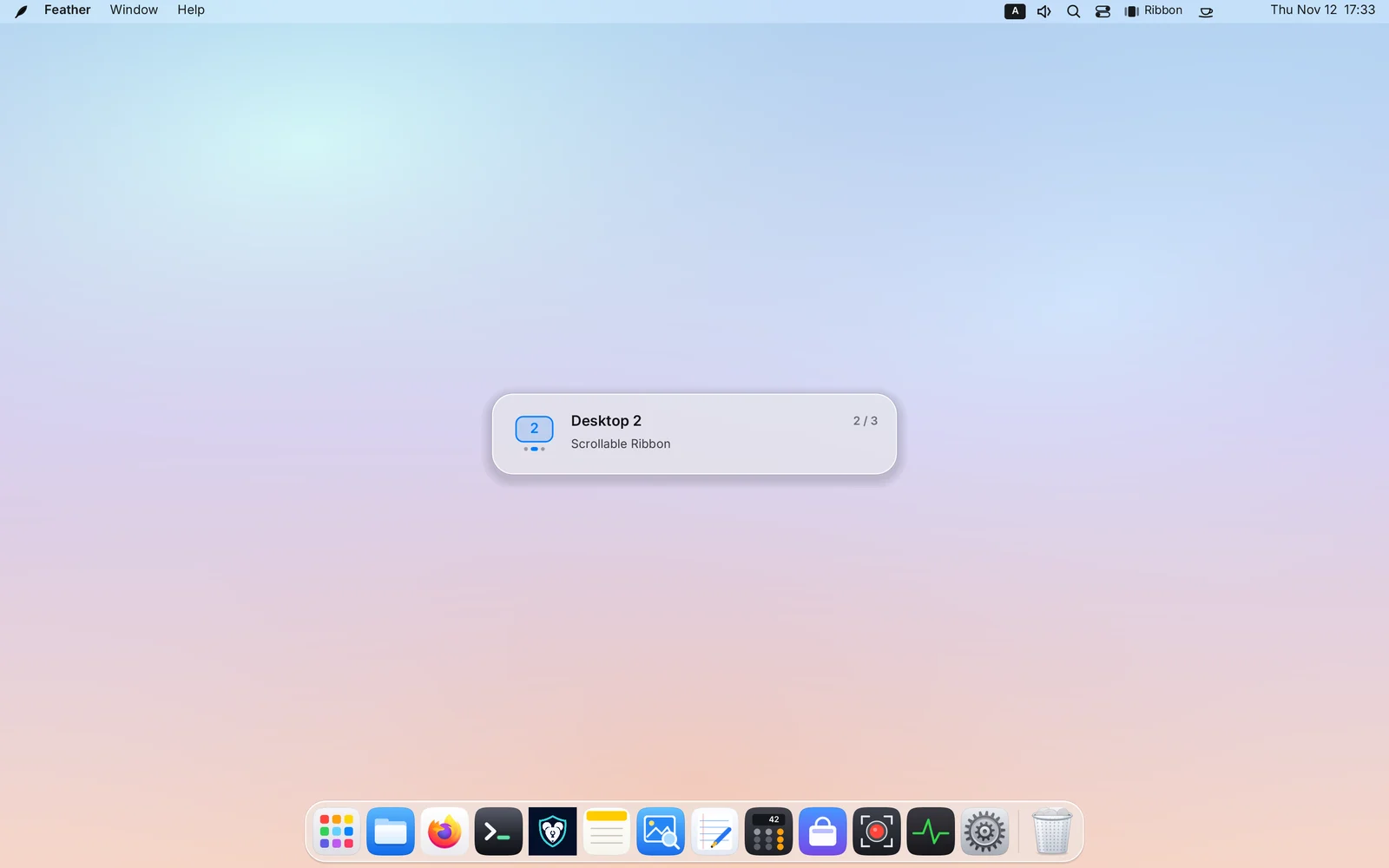
Free windows, Auto-tiling and the Scrollable ribbon
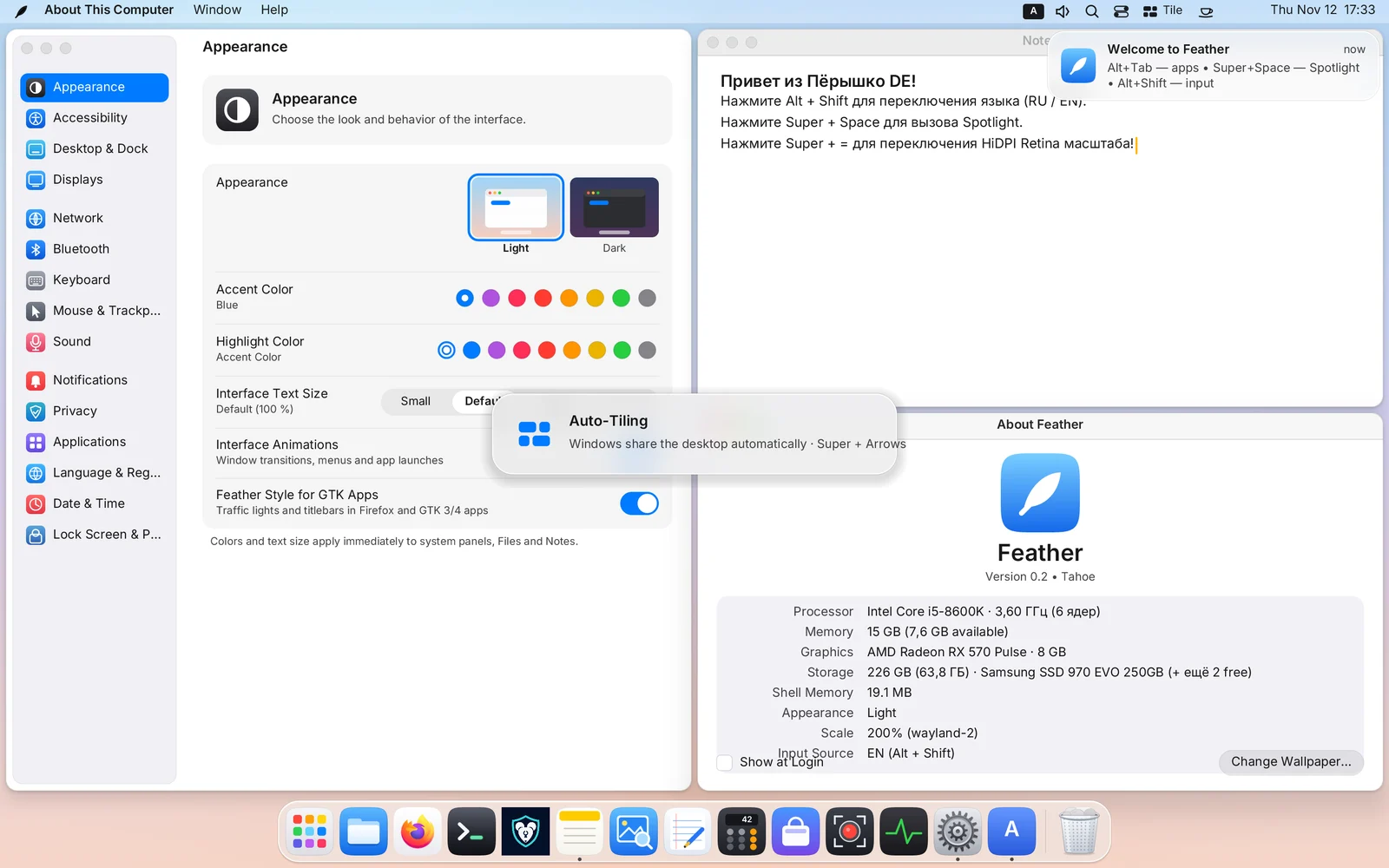
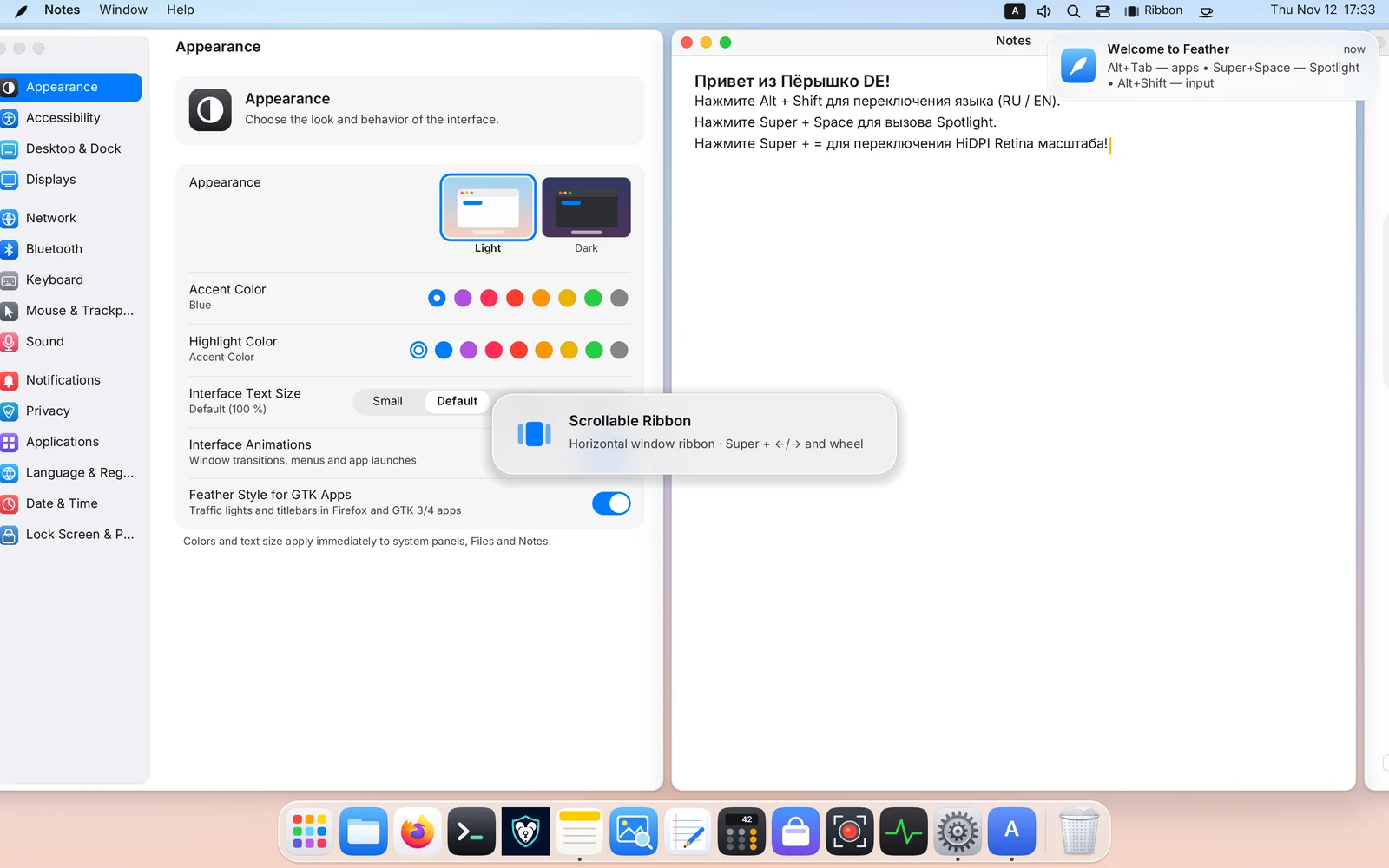
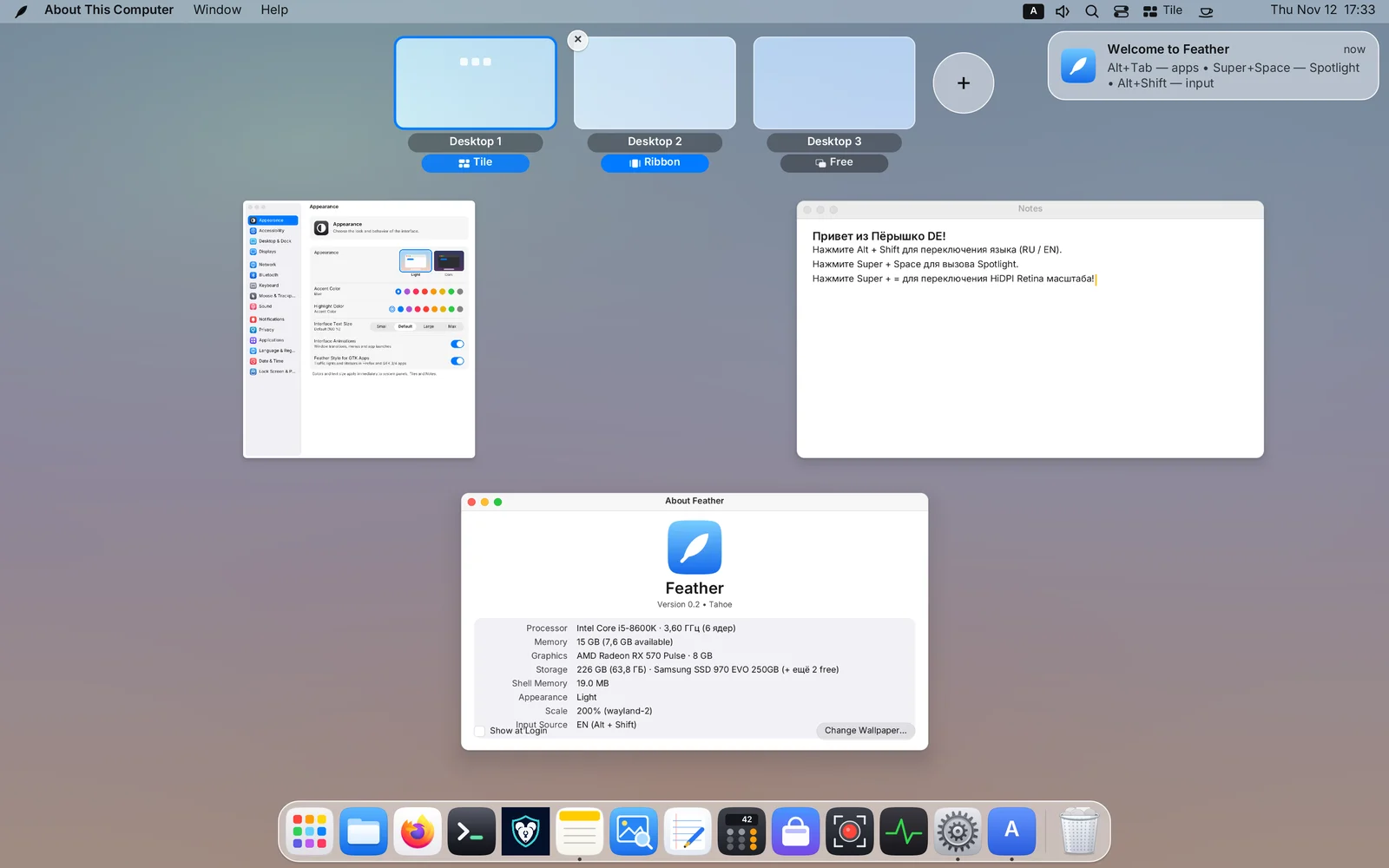
Up to 16 workspaces, each with its own layout mode that survives reboots.
- Auto-tiling. Windows split the desktop with no overlap. Dividers move, split axes rotate.
- Scrollable ribbon. Full-height columns with neighbours peeking at the edges. Scrolling runs at the full refresh rate.
- Direct jump. Super + a digit opens a workspace, creating it if needed.
- Mission Control. All windows in a grid and a strip of workspaces with live thumbnails.
- Layout-independent. Shortcuts work in any keyboard layout.
- switch workspace modeCtrl+Alt+M
- go to workspaceSuper+1…9
- move the windowSuper+Shift+1…9
- Mission ControlCtrl+Alt+↑
- ribbon column widthSuper+R
The Scratchpad drawer
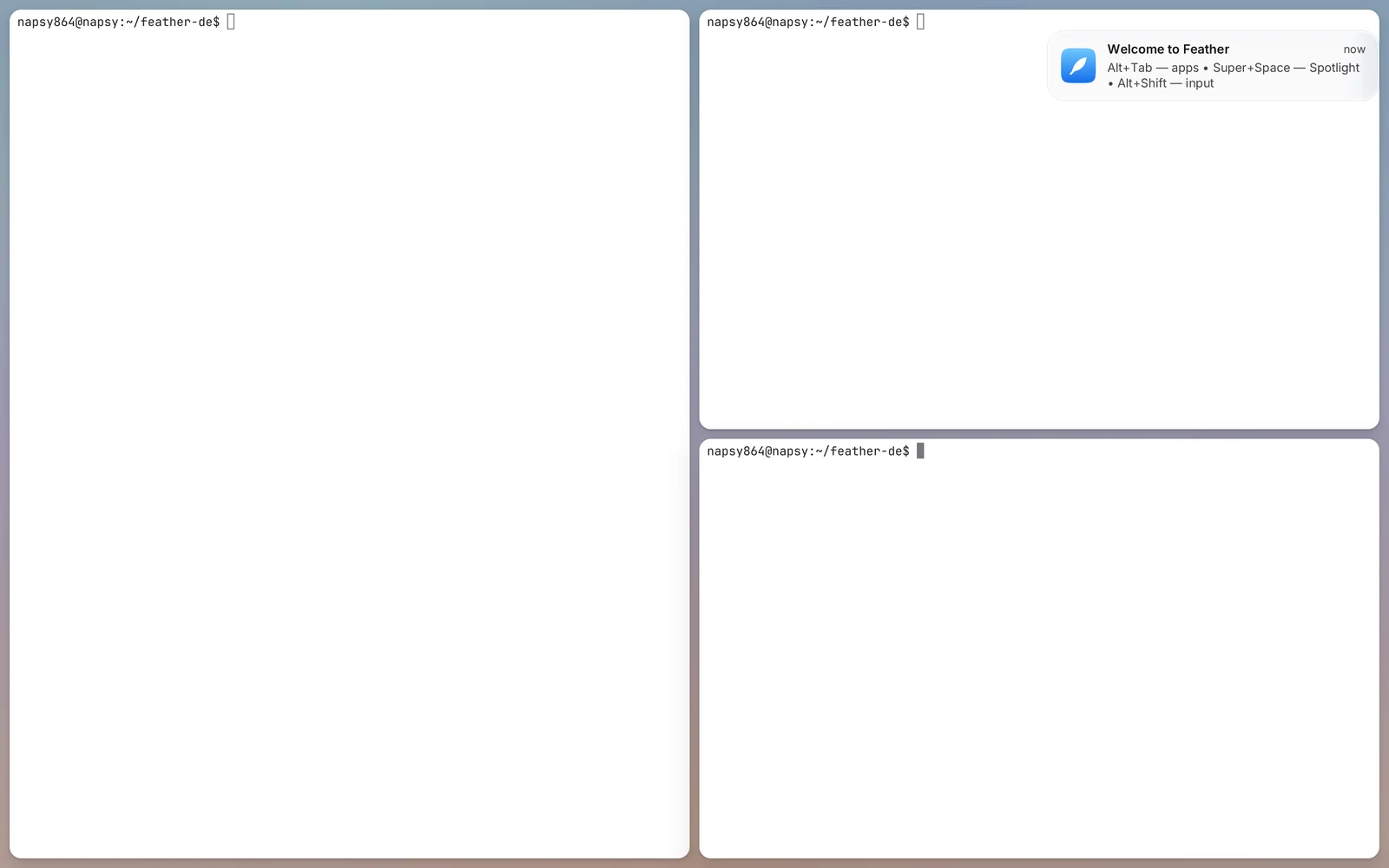
A home for apps you want at hand on every workspace: terminal, notes, chat, music.
- Slides over everything. One shortcut, on any workspace.
- Smart grid. One window fills the screen; two or more tile automatically.
- The same tiling keys. Focus, swap, resize and maximise work as in Auto-tiling.
- show or hideSuper+S
- send a window to the ScratchpadSuper+Shift+S
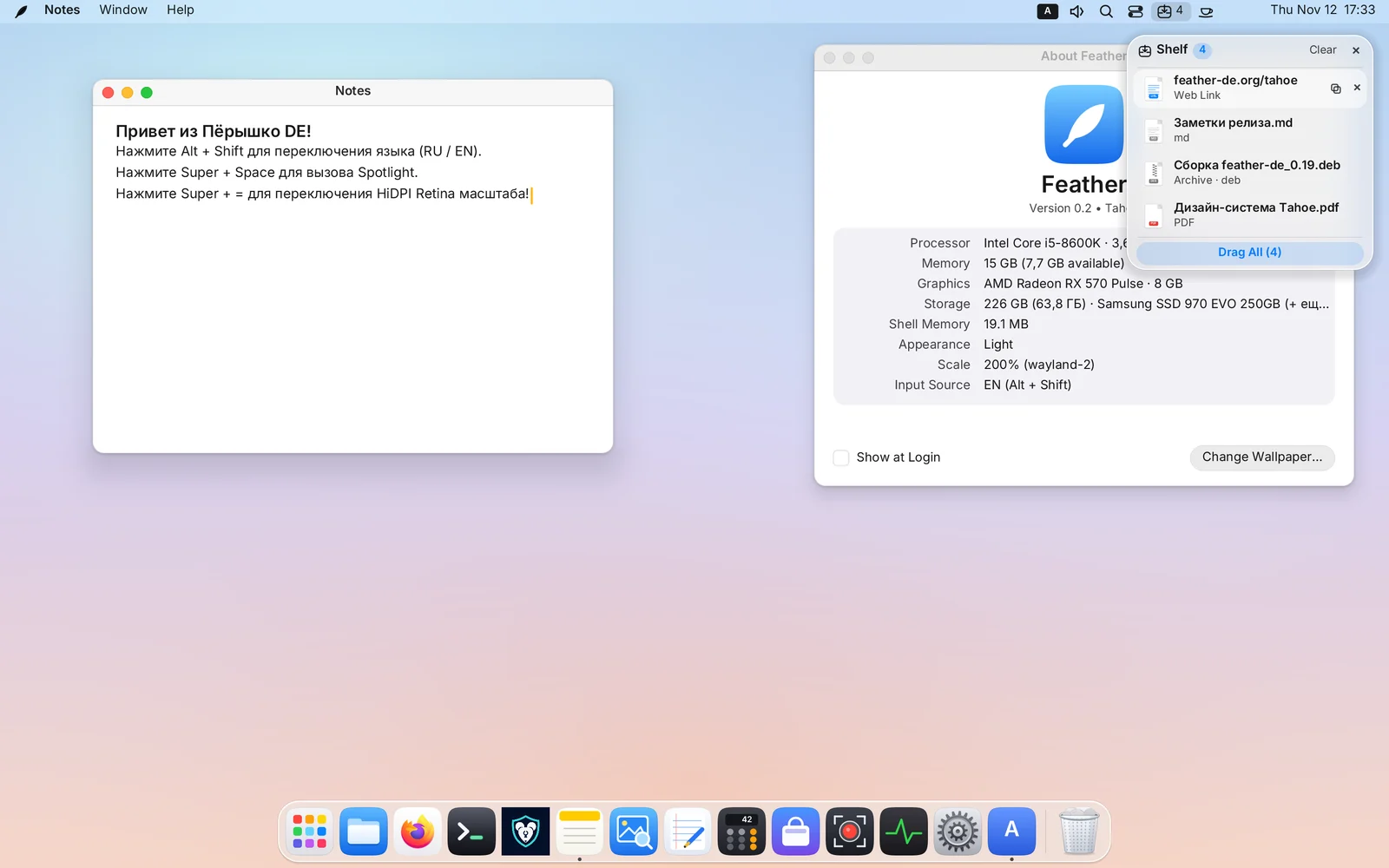
The glass Drop Shelf
Started dragging a file, but the target window is on workspace three? Park it on the shelf and pick it up there.
- Shake the pointer. The shelf appears right in the middle of a drag.
- Up to 24 cards. Files, folders, images from the browser, links and text.
- Never lost. A closed shelf stays as a pill with a counter in the menu bar.
- open or hide the shelfSuper+D
Control Center, mixer and notifications
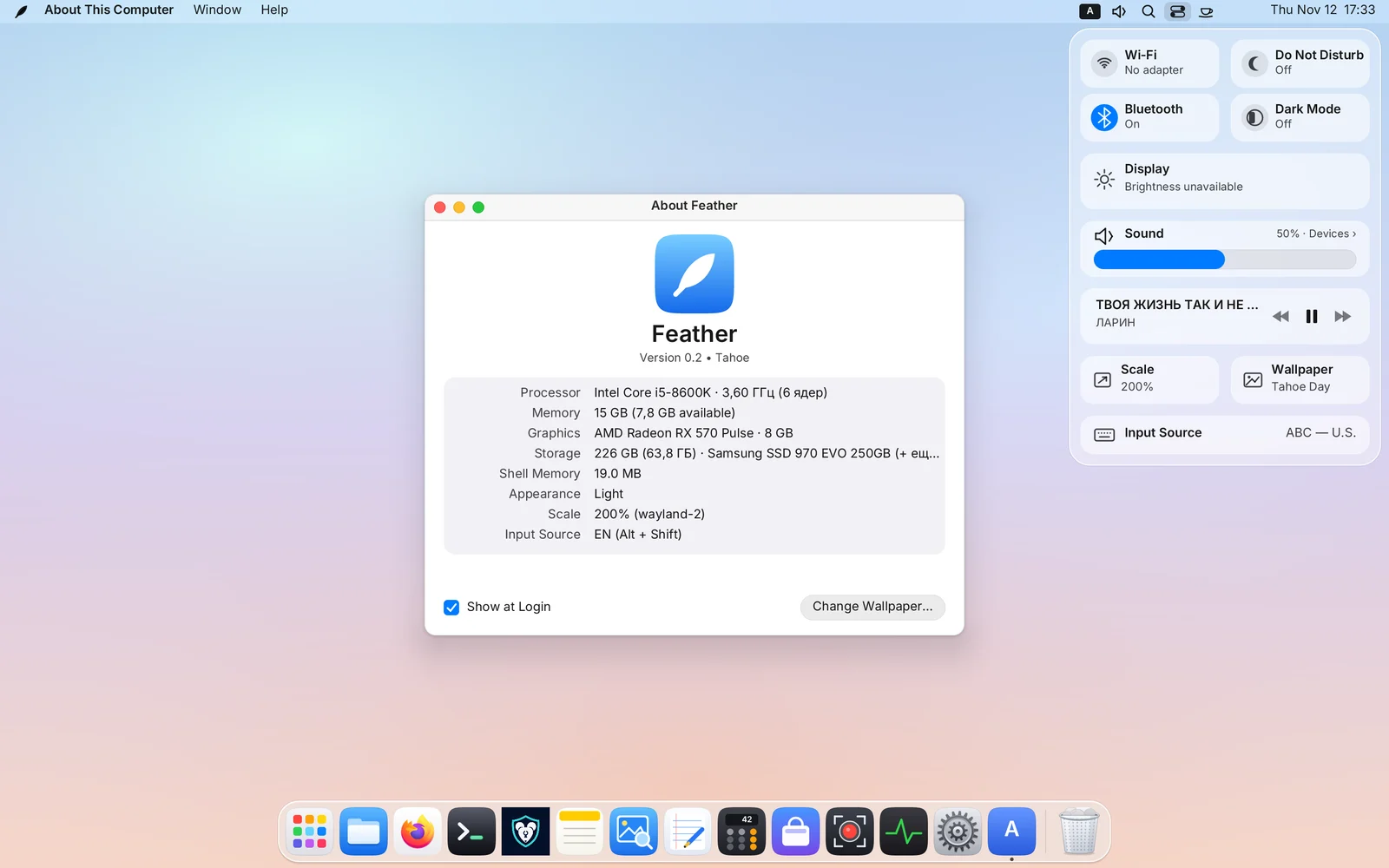
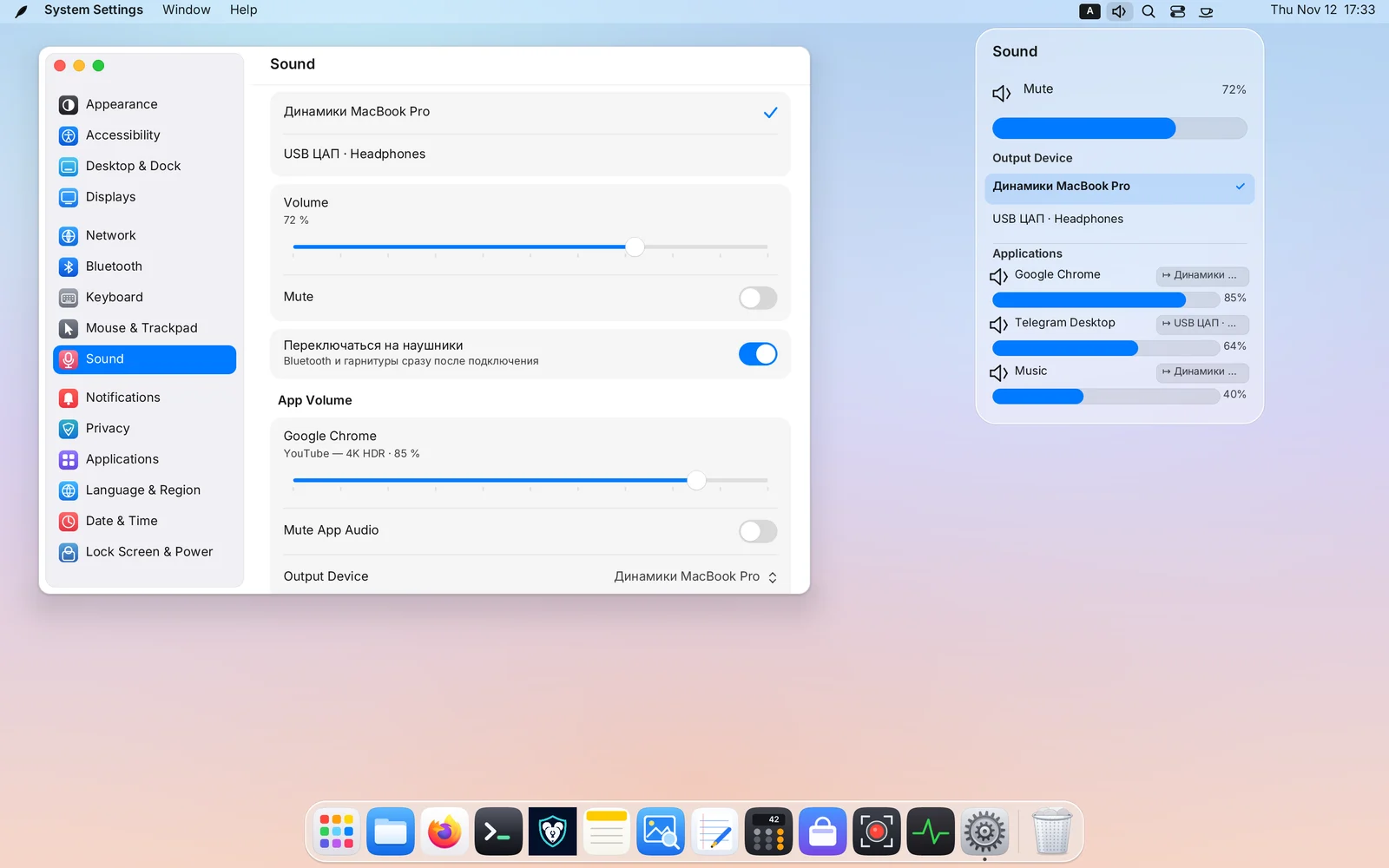
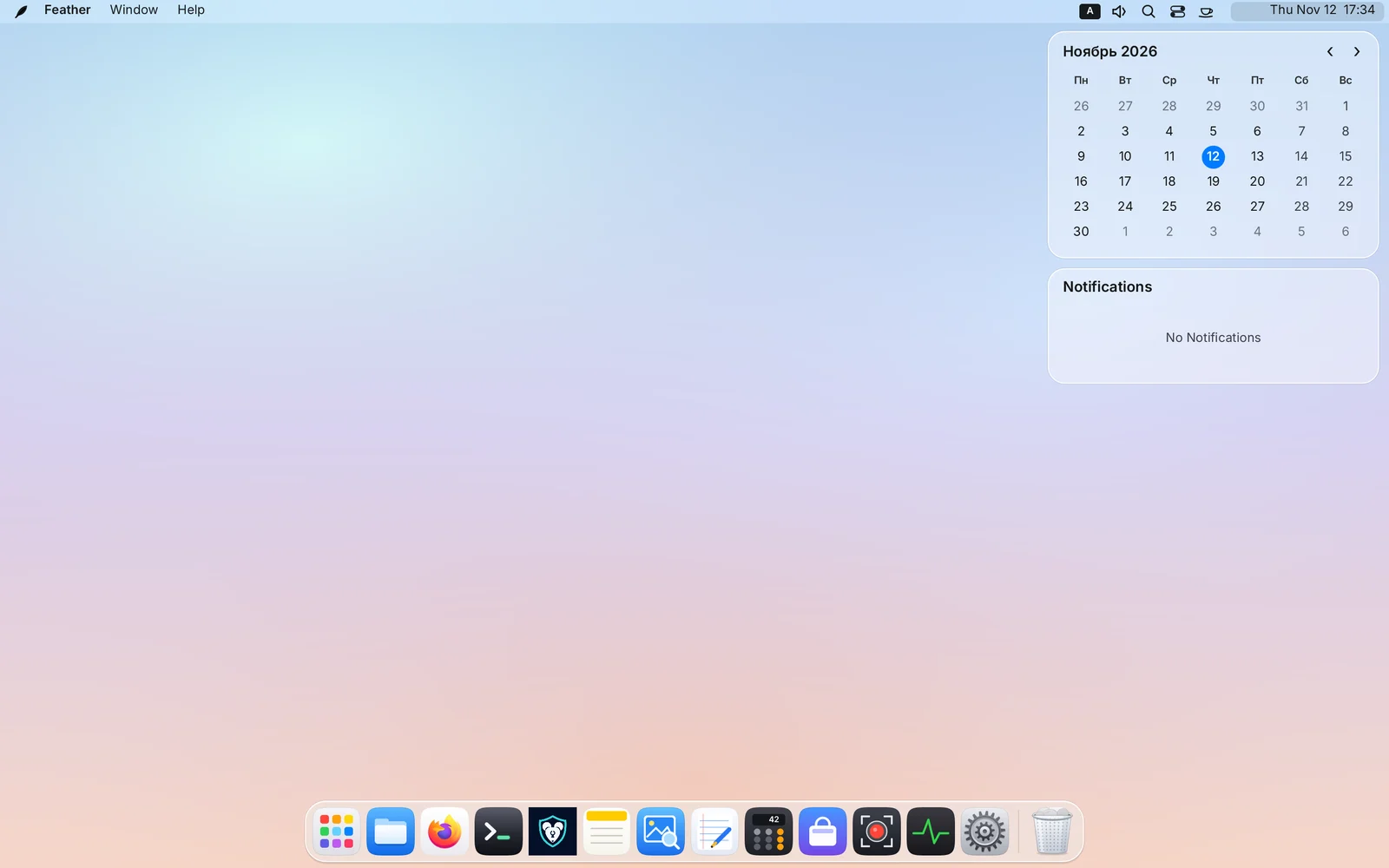
Everything you toggle ten times a day lives in two glass drawers at the top right.
- Wi-Fi and VPN. Pick a network and enter the password; VPN and WireGuard profiles.
- Bluetooth. One-click connect and accessory battery levels.
- Brightness. Laptop backlight and external monitors over DDC/CI.
- Per-app mixer. Volume and output device for each application.
- Notifications. Grouped by app, with actions and scheduled Do Not Disturb.
- Control CenterSuper+N
Screenshots and screen recording, built in
A screenshot is saved to a folder and copied to the clipboard at once. Recording goes to MP4 or WebM with sound.
- Screen, area or window. PNG, JPEG or WebP.
- Video recording. Full screen or an area, system audio and microphone.
- For calls and OBS. A built-in screen capture portal over PipeWire.
- screenshotPrint
- areaShift+Print
- active windowAlt+Print
- screen recordingSuper+Alt+5
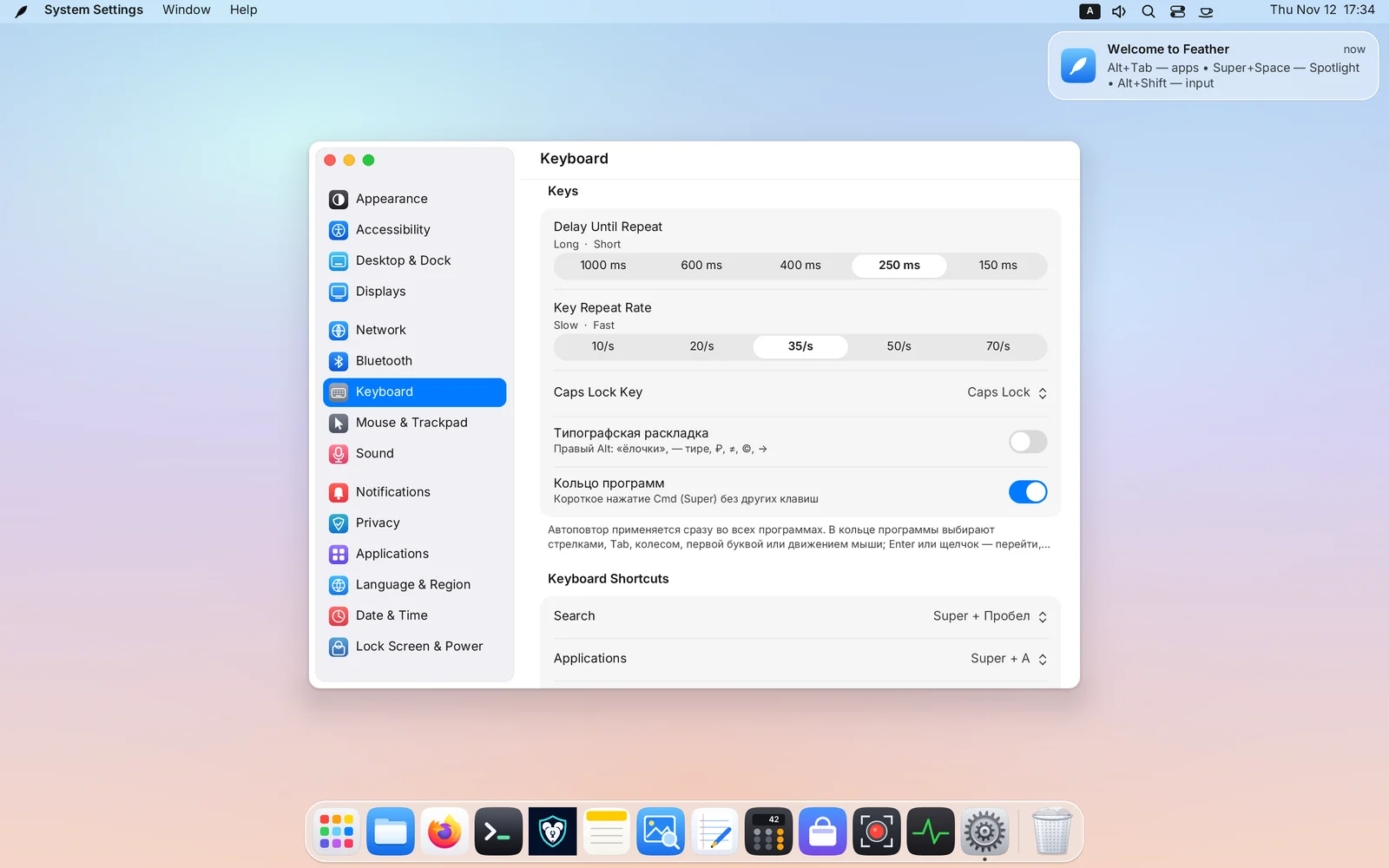
System Settings: 15 sections
Appearance, displays, network, sound, keyboard and the rest — in one window. Changes apply immediately.
- Appearance. Light and dark themes, accent colour, font size.
- Displays. Scaling from 100 to 250%, up to 240 Hz, multiple monitors, night mode.
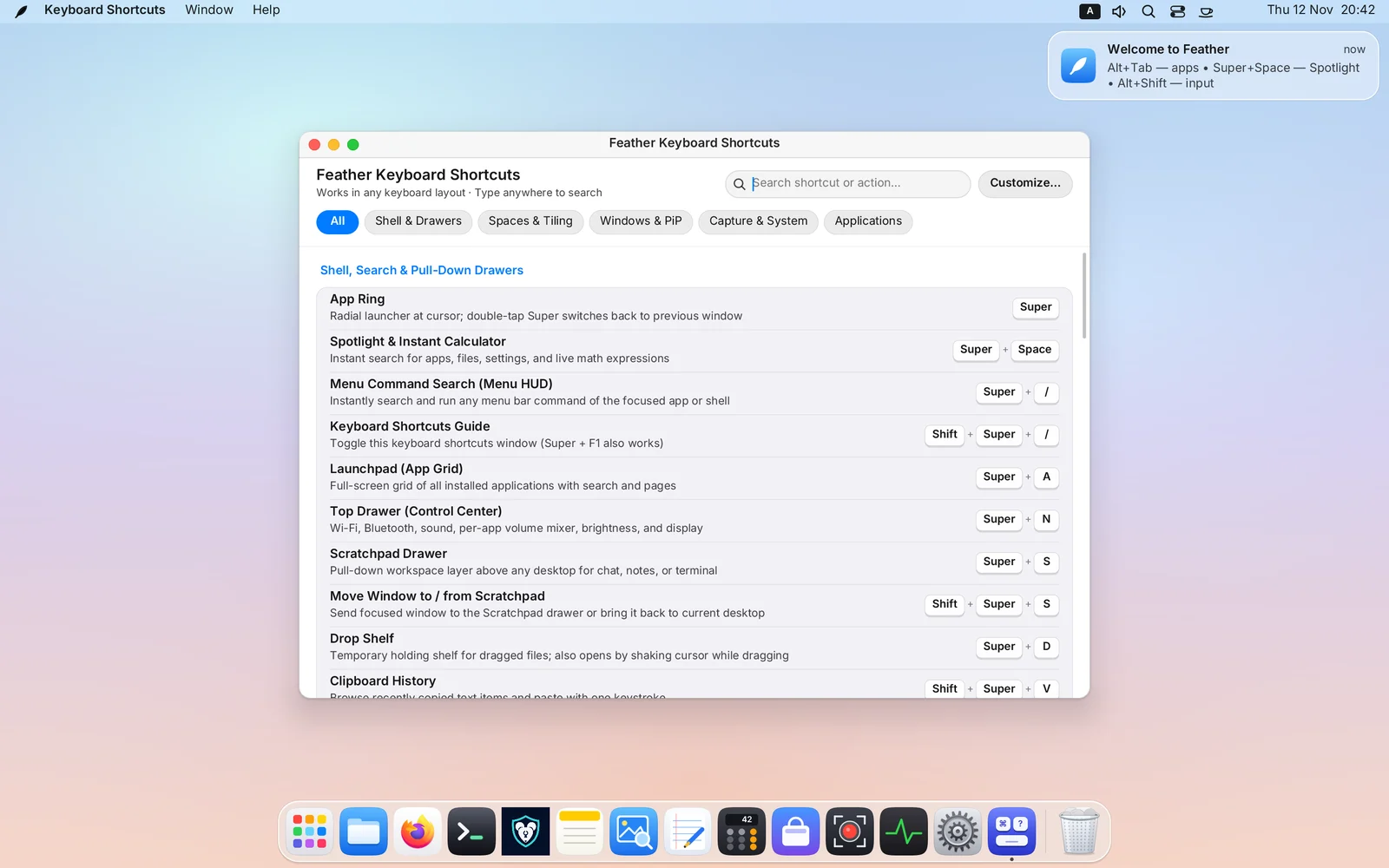
- Keyboard. Layouts, an interactive shortcuts cheat sheet and a full table for remapping keys.
- Accessibility. Large text, contrast, reduced transparency, sticky keys.
- Hot corners. Mission Control, Launchpad or lock when the pointer hits a corner.
- shortcuts cheat sheetSuper+Shift+/
- scale upSuper+=
- scale downSuper+-
Linux and X11 apps, Wine and games
What you already use keeps working: Flatpak and Snap, Steam and Discord, Windows games through Proton.
- X11 on demand. The compatibility layer starts only when an X11 app is open.
- For games. Pointer capture, VRR (FreeSync), explicit sync and direct scanout.
- Wine on HiDPI. A separate scaling switch for XWayland and Wine.
- Third-party panels. layer-shell support: waybar, rofi and friends.
Eight native apps in Rust
Built together with the shell: they start instantly and look like part of the system.
Files
feather-filesQuick Look on Space, Trash, and ZIP, 7z and RAR archives with passwords.

Terminal
feather-terminalIts own VT core, TrueColor, tabs and search across 10,000 lines of history.
Notes
feather-notesSearch, autosave and plain files on disk — no databases, no cloud.

Preview
feather-previewPhotos, SVG and multi-page PDFs with a thumbnail strip.
Text Editor
feather-texteditTabs, line numbers, find and replace, and syntax highlighting.
Calculator
feather-calcBasic, scientific and programmer modes with a history log.

System Monitor
feather-monitorProcesses and live graphs on the familiar Ctrl + Alt + Del.

Store
feather-storeSystem packages and the Flathub catalogue with one-click install.
Try Feather
Write the image to a USB stick and boot: the system runs straight from it. Or install the desktop with one command on Ubuntu and Arch.