 Feather
Welcome to Feather DE (Пёрышко) — an ultra-lightweight, responsive Linux desktop environment inspired by macOS Tahoe, powered by its own Wayland compositor, real-time GPU Liquid Glass, three independent per-desktop layout modes (floating windows, automatic BSP tiling, and a scrollable horizontal ribbon), and eight native Rust applications.
About the
Super(Cmd/⌘) key: throughout Feather DE,Super(theCmd,⌘, orWindowskey on standard PC keyboards) serves as the primary system modifier. This leavesCtrl + C / V / T / WandCtrl + 1…9completely free inside terminals, code editors, and web browsers without conflicts. Every letter and digit shortcut matches physical keys / Latin keysyms, so shortcuts keep working seamlessly regardless of your active keyboard layout.
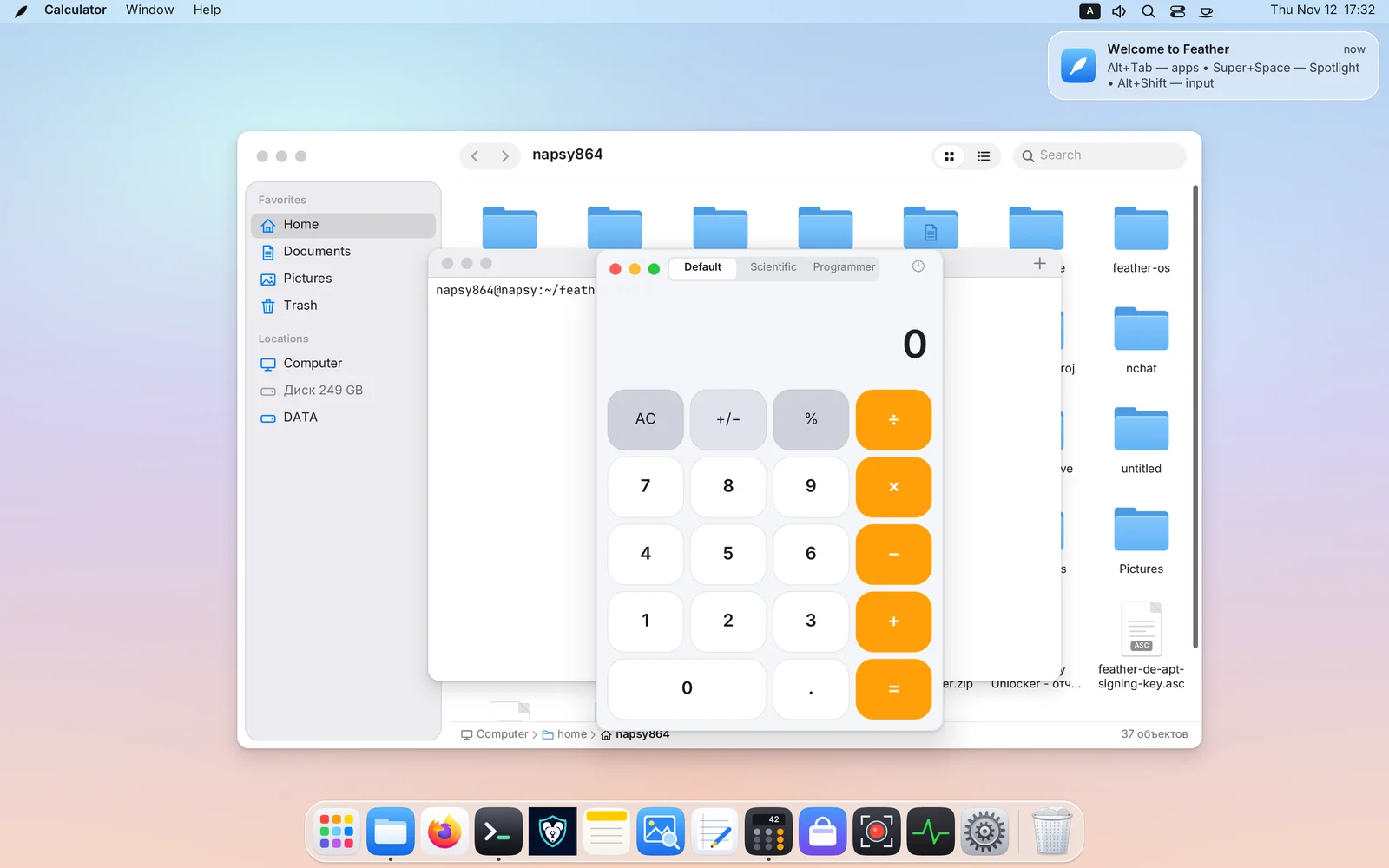
1. Getting Started & First Login
On your first login, the Welcome Setup Assistant walks you through choosing your interface language (English, Russian, Spanish, German, French, or Simplified Chinese), Light or Dark appearance, accent color, and keyboard layouts. You can reopen this assistant anytime from the 🪶 Feather menu in the top-left corner.
The Feather desktop is organized into four main areas:
- Top Menu Bar — the
🪶 Feathersystem menu, the active application’s global menu, StatusNotifierItem tray icons, keyboard layout switcher, speaker/per-app mixer icon, Spotlight search, Control Center toggles, current desktop layout pill, Caffeine cup, and the clock (which opens Notification Center). - Desktop Canvas — supports files, folders, and
.desktoplaunchers directly on the wallpaper with rubber-band selection, drag-and-drop to and from Files, right-click menus, and moving items to Trash. - Dock — pinned and running applications with smooth hover magnification, window indicators, and the Trash icon on the end.
- Real-Time GPU
Liquid Glass— panels, drawers, menus, the Dock, and HUD cards refract and blur live windows and wallpaper beneath them on the GPU (Dual-Kawase + SDF bevel with dispersion and caustics) while skipping work on static frames (0%idle CPU). You can reduce transparency anytime in System Settings → Accessibility.
2. Top Menu Bar, Global Menus & Menu HUD (Super + /)
The 🪶 Menu & Global Application Menus
- On the far left, the 🪶 menu gives instant access to About This Computer, System Settings…, App Store…, Activity Monitor…, and session controls — Sleep, Restart…, Shut Down…, Lock Screen (
Super + L), and Log Out…. - Next to it, Feather displays the active window’s global menu (supporting Qt/KDE apps via
DBusMenuand GTK apps viaorg.gtk.Menus). For apps that do not export a menu, Feather provides built-in Window and Help menus. - Open menus can be navigated with the mouse or with
← / → / ↑ / ↓andEnter.
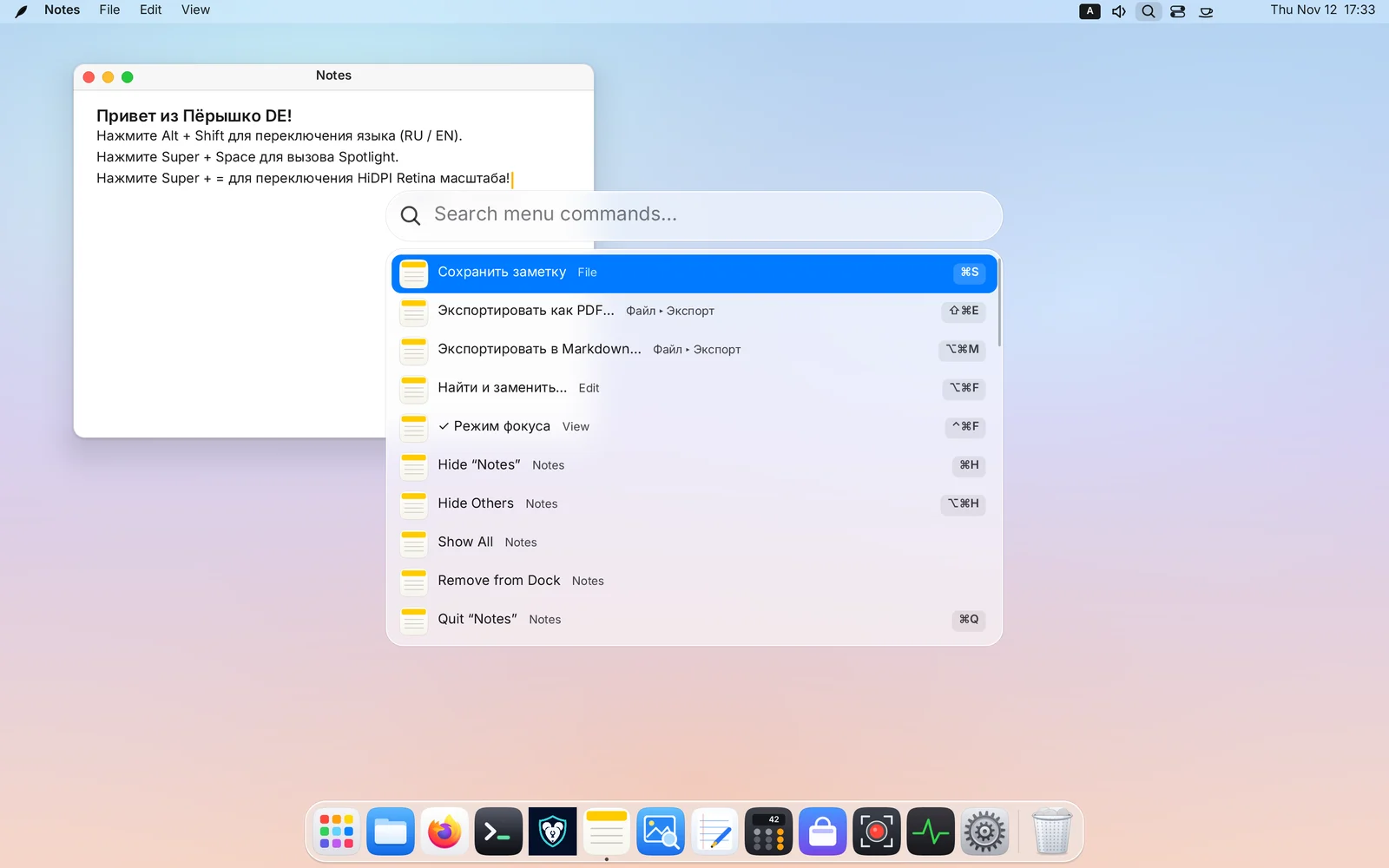
Instant Menu Command Search — Menu HUD (Super + /)
Never hunt through nested submenus for a buried command again:
- Press
Super + /(or choose Help → Search Menus…). - Start typing what you want to do — Feather flattens the active app’s entire menu tree and shell menus into a searchable command palette with breadcrumbs (
File ▸ Export ▸ Export as PDF…), checkmarks, and shortcut badges on the right. - Cross-layout typo tolerance: even if your keyboard is left in another layout (e.g.
QWERTY ↔ ЙЦУКЕН), Menu HUD automatically matches your query across layouts!
System Tray & Caffeine
- Background apps (Telegram, Steam, VPN clients, etc.) place icons in the right side of the menu bar via
StatusNotifierItem; extra icons fold neatly into an overflow popup when space is tight. - Caffeine Cup: click the cup icon next to the clock to prevent screen blanking and automatic sleep during presentations, reading, or long downloads — confirmed by a centered glass HUD card.
3. Dock, Launchpad, Spotlight & the App Ring (Cmd)
The Dock
- Left-click an icon to launch the app or bring its windows forward; clicking an already active app minimizes its window into the Dock, and clicking a minimized app restores it.
- Right-click an icon to pick a specific window, pin/unpin the app, or quit it.
- Drag & customize: reorder or pin icons by dragging (or lock Dock icons against accidental drags in System Settings → Desktop & Dock), adjust icon size, place the Dock on the bottom, left, or right edge, and enable auto-hide.
- Trash: drag files onto the Trash icon to delete them, or right-click → Empty Trash….
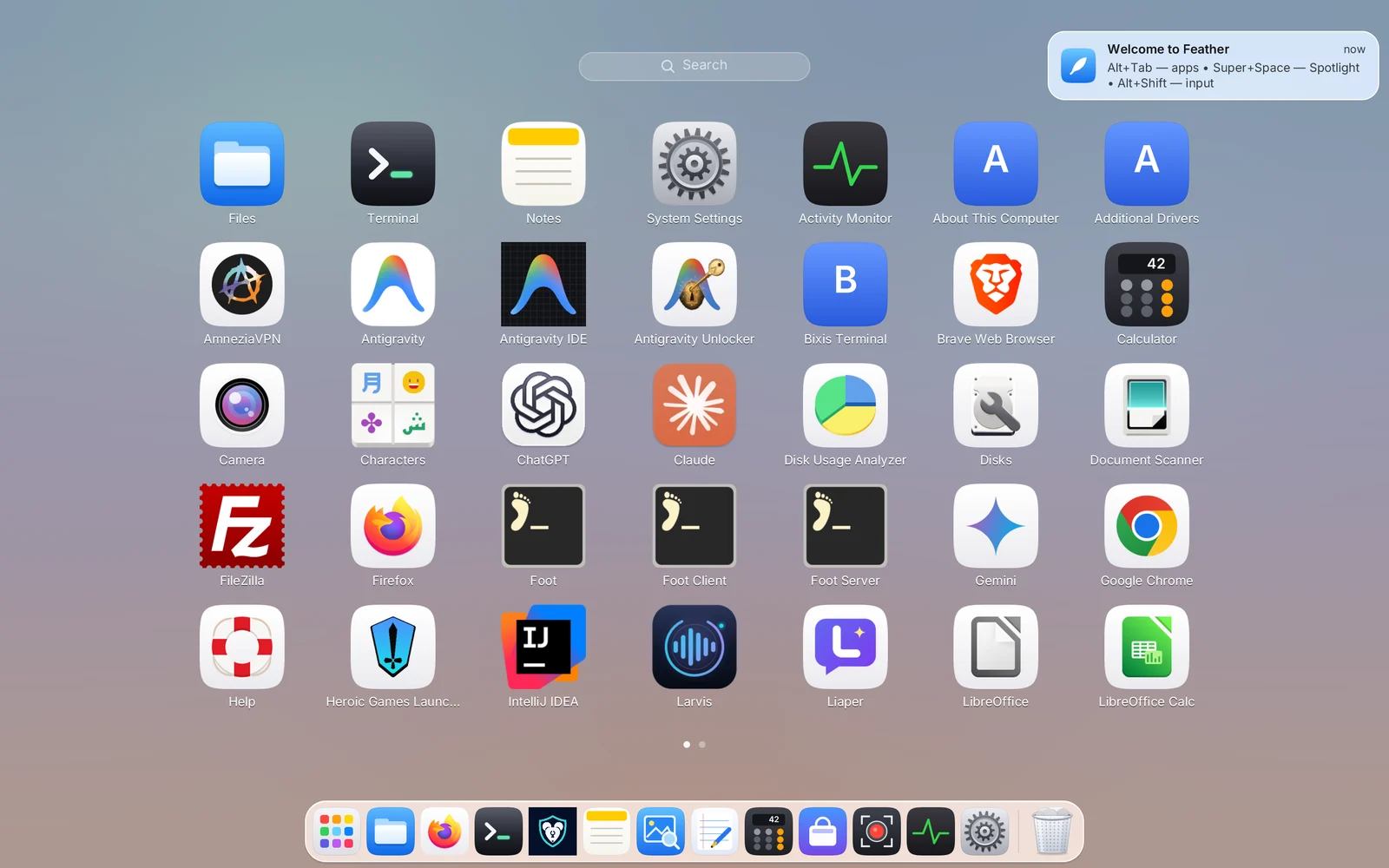
Launchpad (Super + A)
Opens a full-screen grid of all installed applications (including Flatpak and Snap packages):
- Just start typing to filter apps live.
- Flip pages with the mouse wheel, a 3/4-finger horizontal trackpad swipe, or
← / →; pinch 4 fingers in on a trackpad to open Launchpad, spread 4 fingers out to close it. - Drag any app straight from Launchpad onto the Dock to pin it.
Spotlight Search (Super + Space), Clipboard History & Emoji
One fast search bar with zero background indexing daemons:
Super + Space— searches installed apps, open windows across all desktops, System Settings pages, Notes, files in your home folder, menu commands, and evaluates math expressions live (e.g.1920 * 1080 / 1024).Super + Shift + V— opens Clipboard History (kept strictly in RAM for the current session; password-manager entries are automatically ignored). Selecting an item pastes it straight into the active window.Super + .— opens the Emoji Picker with keyword search.
Radial App Ring (Tap Super / Cmd)
A signature fast-switching gesture in Feather DE:
- Tap and release the
Super(Cmd) key on its own without pressing any other key — a radial ring of running and pinned apps opens right around your pointer. - Flick the mouse toward a sector and click (or use arrows /
Tab/ the app’s first letter). - Double-tap “Cmd, Cmd” to bounce straight back to your previously focused window! (Can be toggled in System Settings → Keyboard.)
4. Windows, Edge Snapping & Ghost PiP (Super + P)
Title Bars, Traffic Lights & Effortless Resizing
- Windows feature macOS-style traffic-light controls on the top left:
- 🔴 Red — close window (
Super + W); - 🟡 Yellow — minimize to Dock (
Super + M); - 🟢 Green — maximize (
Super + F), or hover over it for0.45 sto open the half/quarter tile menu.
- 🔴 Red — close window (
- Apps requesting client-side decorations (Chrome, Firefox, Telegram, etc.) keep their own native headerbar with GPU-rounded corners — Feather never forces a duplicate titlebar.
- Generous resize borders: an invisible outer grab halo around edges and corners makes resizing effortless on HiDPI displays. You can also hold
Superat any time to move a window withSuper + Left-Dragor resize it from inside withSuper + Right-Drag.
Classic Edge Snapping (in Free Windows Mode)
- With the mouse: drag a window to the left or right screen edge to snap to half the screen, into any of the four corners for a quarter tile, or to the top bar to maximize.
- With the keyboard (
Ctrl + Super + Arrows):Ctrl + Super + ← / →— snap to the left or right half;- press
Ctrl + Super + ↑or↓right after — fold into the top or bottom quarter of that side! Ctrl + Super + ↑— maximize;Ctrl + Super + ↓— restore previous floating size.
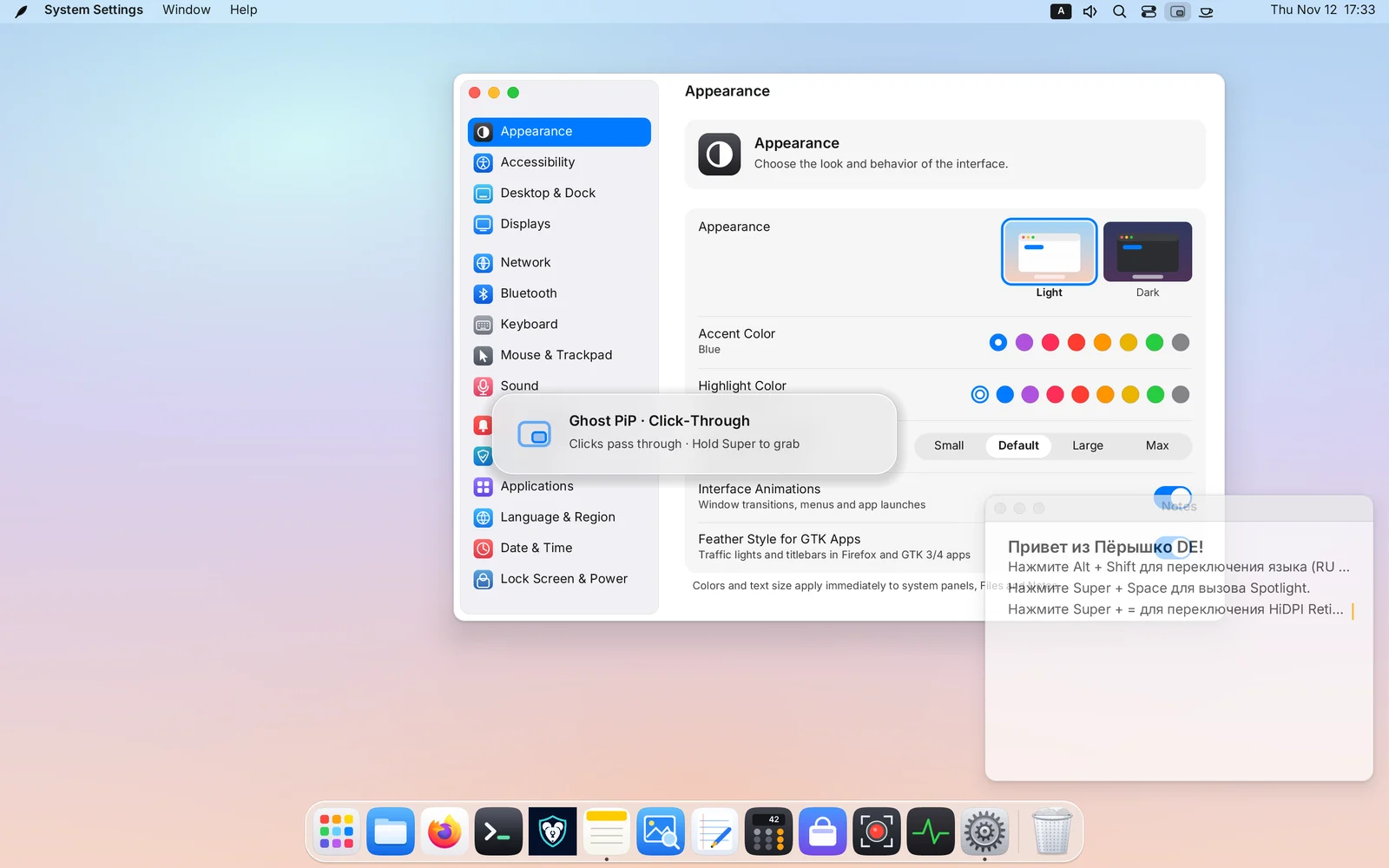
Picture-in-Picture & Ghost Click-Through Mode (Super + P)
Pin any window (a video stream, reference doc, note, or system graph) above all workspaces:
Super + P— toggles Picture-in-Picture (PiP): the window scales cleanly while respecting aspect ratio, snaps magnetically to the nearest screen corner, and stays visible across every desktop and above fullscreen apps. Drag it and let go — a GPU spring glides it into any of the four corners.Super + Alt + P— toggles Ghost Mode (Click-Through): the PiP window turns translucent (68%opacity) and passes every mouse click, hover, and scroll wheel event straight through to the window underneath! You can code, browse, or game right through a floating video.- Moving a ghosted window: simply hold
Super— whileSuperis held, the ghost window temporarily captures pointer input again so you can drag or resize it.
5. Workspaces, Auto-Tiling (Tile) & Scrollable Ribbon (Tape)
Feather supports up to 16 workspaces (Spaces), and each desktop has its own independent layout mode, persisted across sessions! For example, Desktop 1 can run classic floating windows, Desktop 2 can run automatic BSP tiling for terminals, and Desktop 3 can run a scrollable horizontal ribbon for coding and browsing.
Switching Workspaces & the Centered Desktop HUD Card
- Direct jump by number (
Super + 1…9/Cmd + 1…9): jumps straight to Desktop1…9(works with both the top number row andNumPad, regardless of keyboard layout). If that desktop doesn’t exist yet, Feather creates it on the fly, and empty trailing desktops automatically prune themselves when you leave! - Carry window by number (
Super + Shift + 1…9): moves the active window (including detaching a window from the Scratchpad) directly to Desktop1…9and switches there with it. - Adjacent desktops:
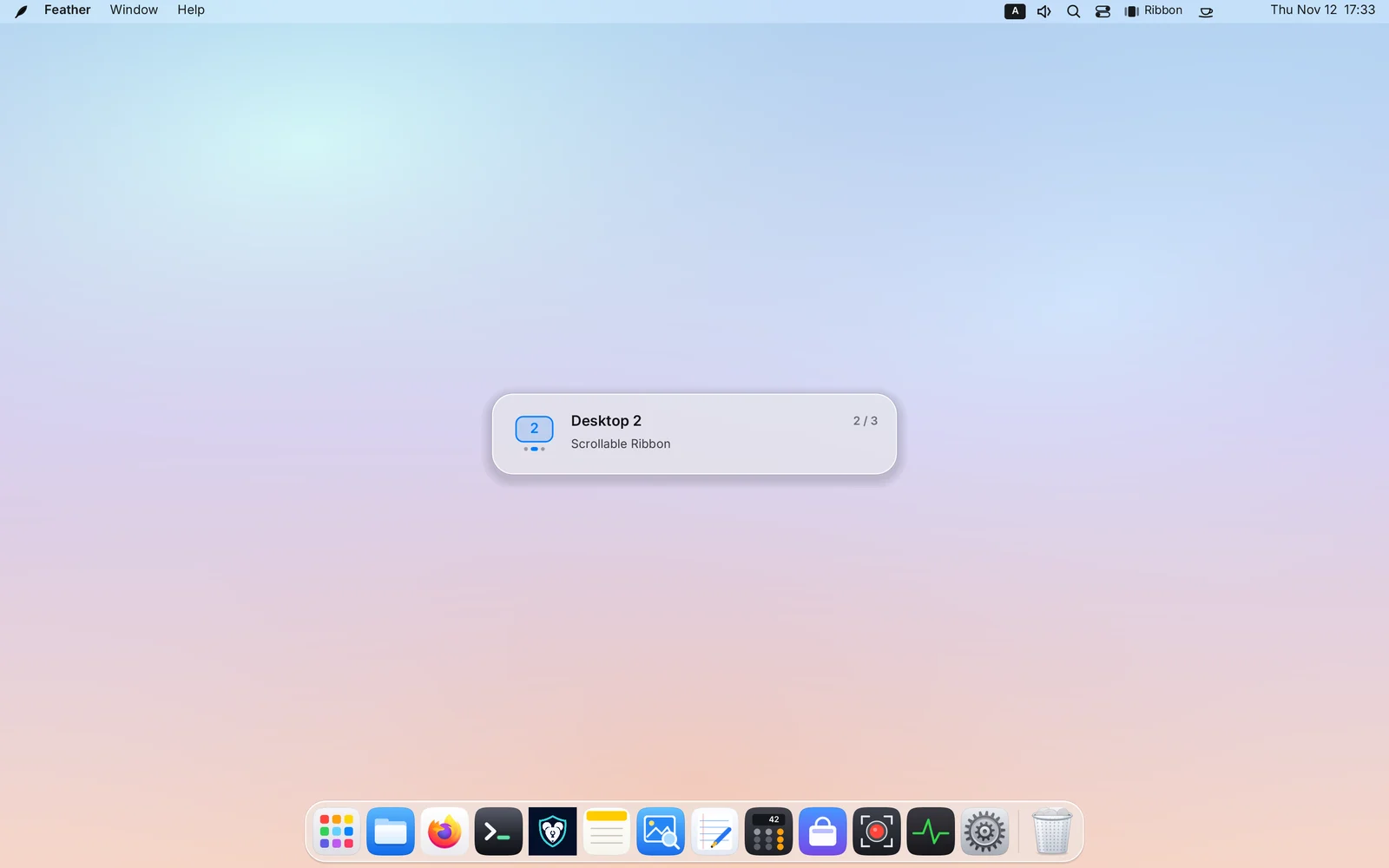
Ctrl + Alt + ← / →(or a 3-finger horizontal trackpad swipe) steps left/right between desktops;Ctrl + Alt + Shift + ← / →carries the active window along. - Centered Liquid Glass HUD Card: whenever you switch desktops via hotkeys or trackpad swipe, a centered glass card appears for
1.2 sshowing the desktop badge number, page-indicator dots,N / Mcounter, and layout mode (or “Window moved to this desktop”), so you always know which desktop you landed on — even when switching between empty desktops.
Cycling the Three Desktop Modes (Ctrl + Alt + M)
Switch the current desktop’s layout mode anytime via:
Ctrl + Alt + M;- clicking the mode pill in the top-right menu bar (
Free/Tile/Ribbon); - clicking the mode pill directly under any desktop thumbnail inside Mission Control;
- Window → Workspace Mode, Spotlight, or
featherctl space-mode.
Switching back to Free Windows (Free) restores every window’s original floating position and size!
Mode 2: Auto-Tiling (Tile — Smart BSP Grid)
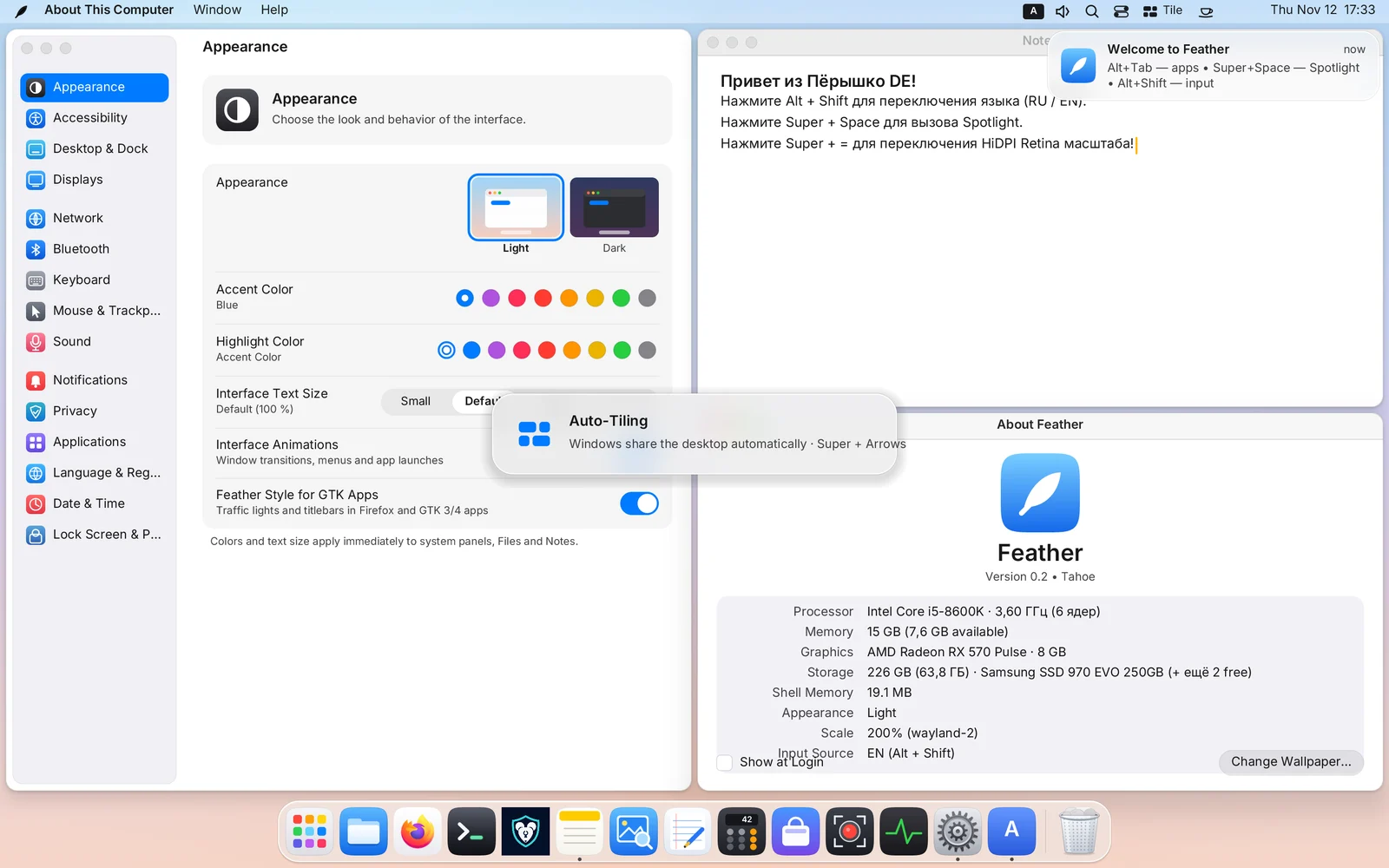
In Auto-Tiling mode, regular windows on that desktop automatically partition the work area between the menu bar and Dock with crisp 6 px gaps (dialogs and PiP windows stay floating):
Action in Auto-Tiling (Tile) |
Shortcut / Mouse |
|---|---|
| Move focus to an adjacent tile | Super + ← / → / ↑ / ↓ |
| Swap windows (or rotate split axis horizontal ↔ vertical when pushing against an outer edge) | Super + Shift + ← / → / ↑ / ↓ or drag titlebar / Super + Left-Drag onto another tile |
| Resize internal split divider (supports key repeat when held) | Ctrl + Super + ← / → / ↑ / ↓ or Alt + Super + ← / → / ↑ / ↓, or drag the gap between tiles / Super + Right-Drag |
| Reset all split ratios to 50 / 50 | Super + 0 or double-click any split divider |
| Temporarily zoom the focused tile to fill the desktop and restore | Super + F or the green window button |
Mode 3: Scrollable Ribbon (Tape — Niri / PaperWM Style)
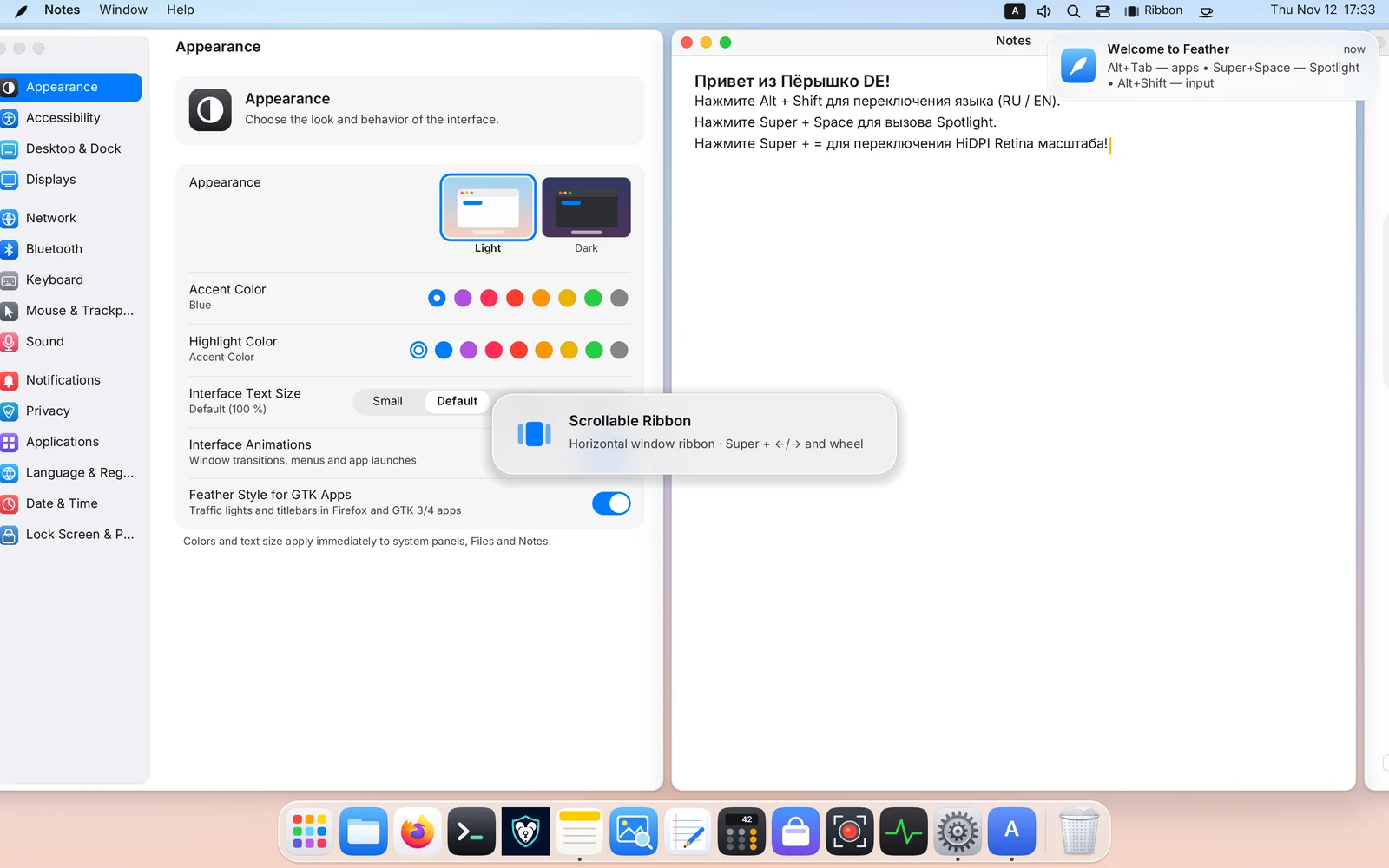
In Scrollable Ribbon mode, windows never get squished into tiny slivers no matter how many you open! Every window becomes a full-height column arranged along an infinite horizontal strip:
- Neighboring columns gently peek in at the left and right edges (
28 pxpeek) — giving visual context and letting you click a peeking edge with the mouse to glide straight to that window. - Scrolling is driven by an analytic GPU spring: client buffers are never re-rasterized while gliding, keeping motion locked to your monitor’s refresh rate (
60 / 120 / 144+ Hz).
Action in Scrollable Ribbon (Tape) |
Shortcut / Scrolling / Mouse |
|---|---|
| Smoothly scroll the ribbon left / right | Super + Mouse Wheel (vertical or horizontal) or Super + two-finger trackpad scroll |
| Focus the column to the left / right (auto-scrolls into view) | Super + ← / → or click a peeking neighbor column edge |
| Jump to the very first / very last column | Super + Home / Super + End |
| Reorder (swap) the active column left / right | Super + Shift + ← / → or drag titlebar / Super + Left-Drag |
Cycle column width presets (50% → 67% → 100% → 33%) |
Super + R |
| Smoothly resize the active column’s width | Ctrl + Super + ← / →, Alt + Super + ← / →, drag column border, or Super + Right-Drag |
Reset all columns in the ribbon to 50% width |
Super + 0 or double-click a border between columns |
Temporarily expand column to 100% width and restore |
Super + F |
Window & Workspace Overview — Mission Control (Ctrl + Alt + ↑)
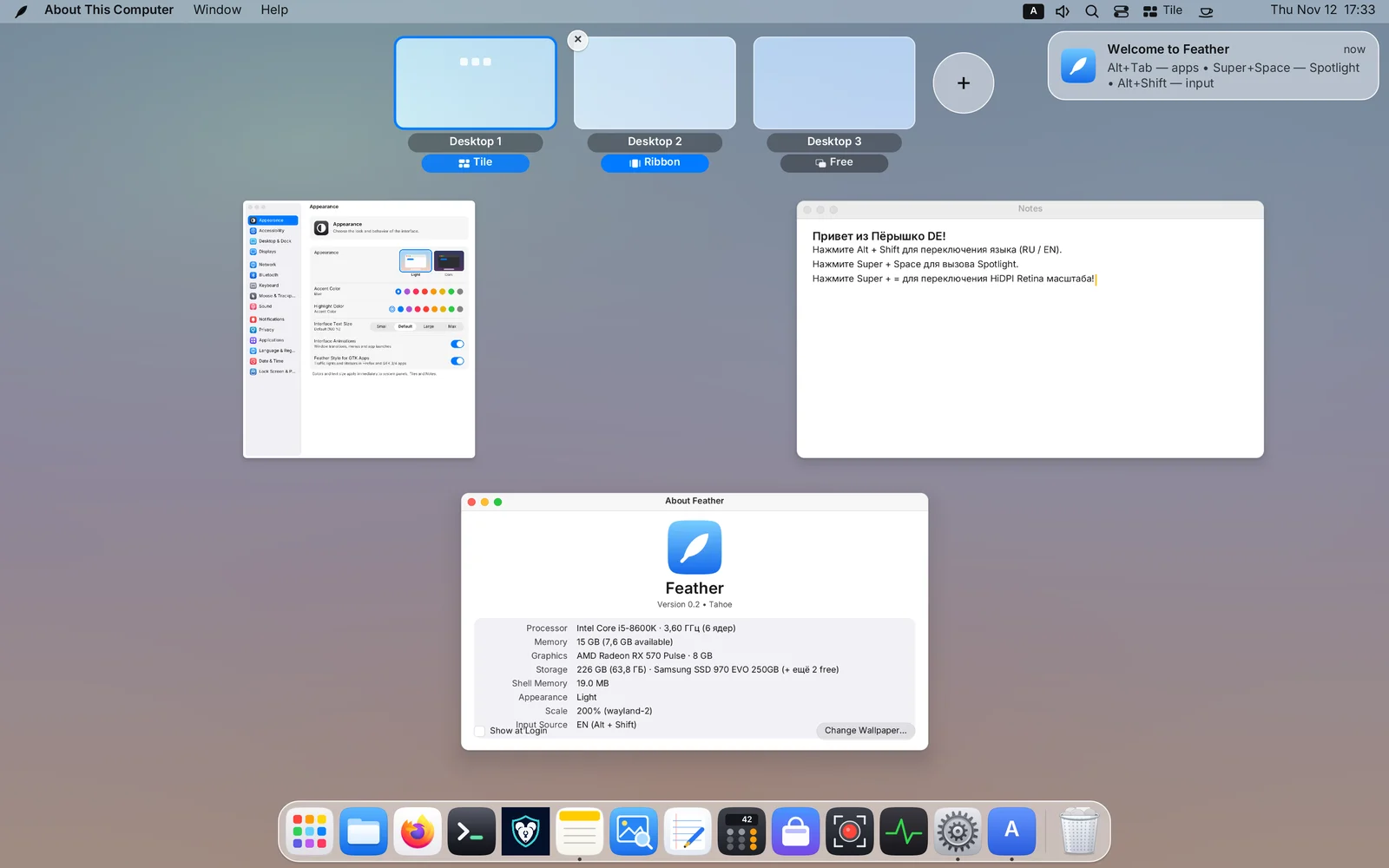
Press Ctrl + Alt + ↑ (or swipe 3/4 fingers up on a trackpad):
- Windows on the current desktop spread into a clean non-overlapping grid — click any window (or hover and press
Enter) to focus it. - Along the top sits the Workspace Strip with live window thumbnails, a
+button to add a new desktop, and a hover×button to close a desktop (its windows move safely to the neighboring desktop). - Drag any window onto another desktop tile — or drop it onto
+to spin up a brand-new desktop for it! - Click the mode pill (
Free/Tile/Ribbon) under any desktop tile to change its layout mode right inside Mission Control.
6. Scratchpad Drawer (Super + S) & Drop Shelf (Super + D)
The Scratchpad Drawer (Super + S)
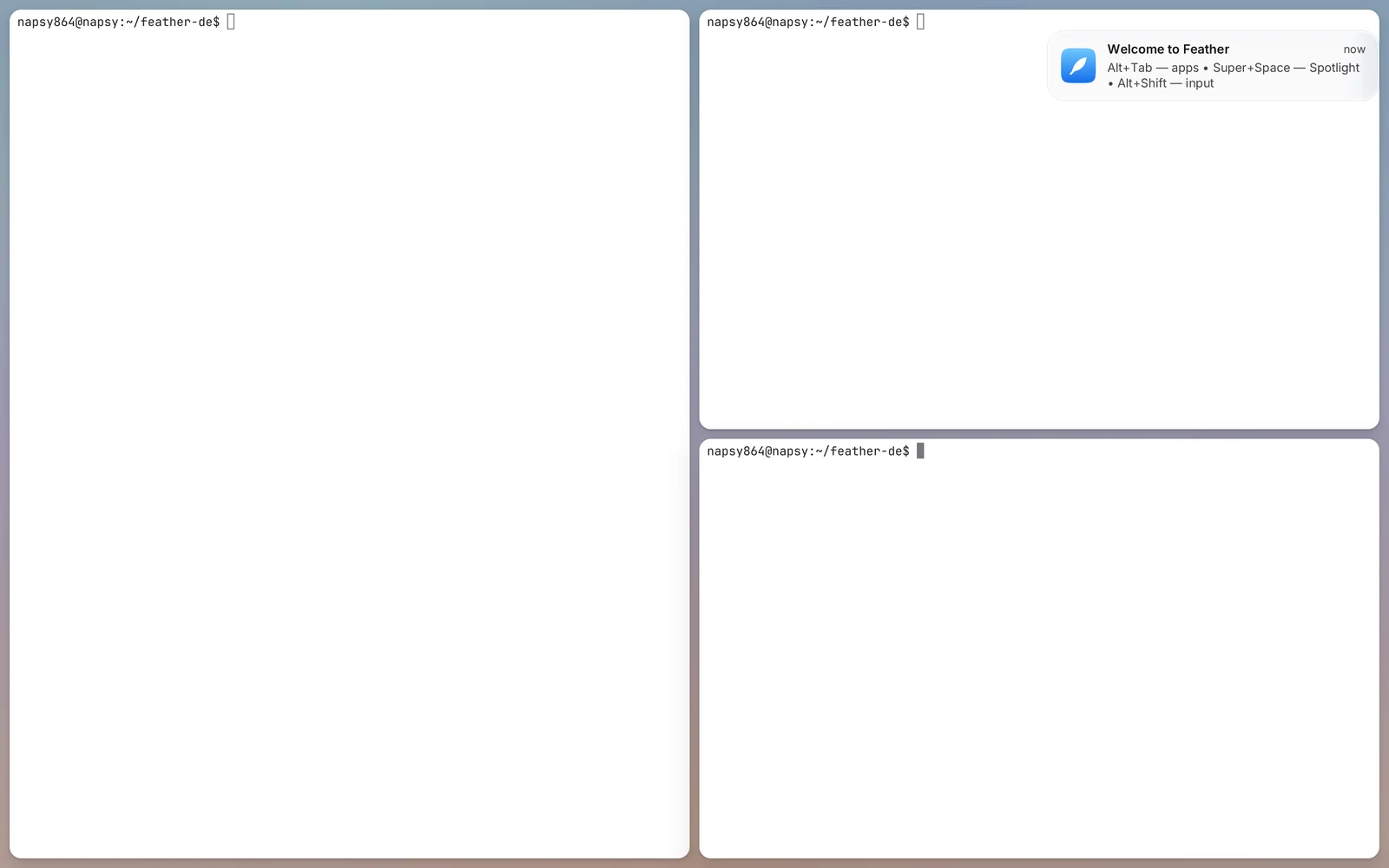
The Scratchpad is an instant pull-down overlay layer for tools you want one keystroke away on every desktop (a terminal, notes, chat app, music player, or calculator):
- Focus any window and press
Super + Shift + S— the window moves off the regular desktop onto the Scratchpad, and a counter badge appears in the menu bar. - Press
Super + Sfrom anywhere to slide your Scratchpad windows in over the current desktop! PressSuper + Sagain (or click the frosted margin near the screen edge) to tuck it away. - Smart Tiling Inside the Scratchpad:
- One window fills the entire screen cleanly.
- Two or more windows automatically form a live tiled grid!
- All tiling shortcuts work inside an open Scratchpad:
Super + Arrows(focus),Super + Shift + Arrows(swap tiles or rotate split axis),Ctrl + Super + Arrowsor mouse-dragging dividers (resize),Super + 0(equalize 50/50), andSuper + F(zoom active tile). - Press
Super + Shift + Sto return the focused window to the current desktop — orSuper + Shift + 1…9to send it straight to a numbered desktop!
Glass Drop Shelf (Super + D / Shake Pointer While Dragging)
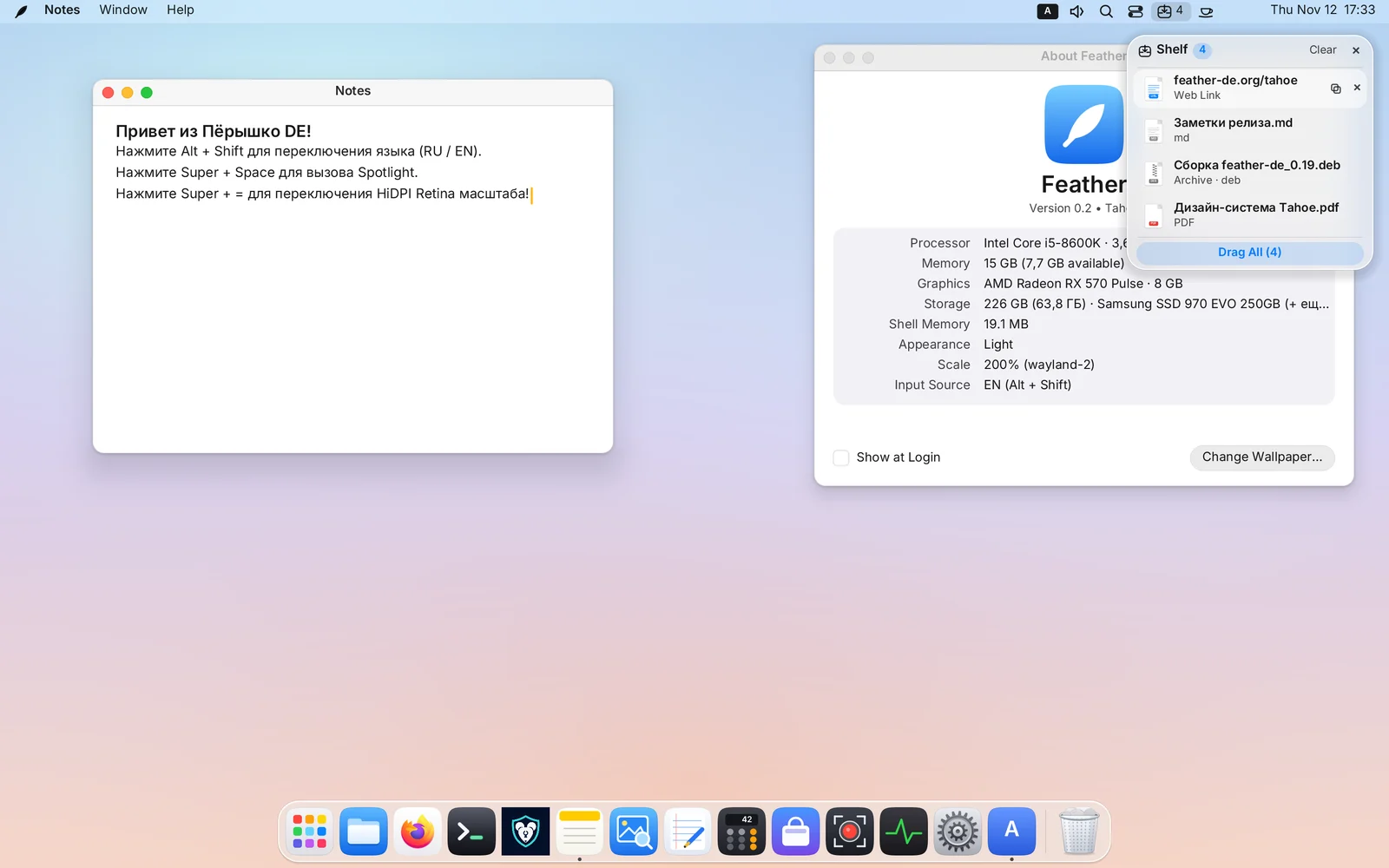
Ever started dragging a file or image only to realize the destination window is buried or sitting on another workspace? Drop Shelf solves multi-step drag-and-drop effortlessly:
- How to summon: simply shake the mouse pointer left-right while dragging a file, image, or text selection (or touch the left/right screen edge while dragging, or press
Super + Danytime). - Drop up to 24 items onto the floating Liquid Glass shelf: local files, folders, web images dragged straight out of a browser, URLs, and text snippets.
- Switch to another workspace (
Super + 1…9), open your target folder or chat app, and drag individual cards — or the entire batch at once — right off the shelf! - Closing the shelf (
Super + Dor×) keeps your stashed items accessible from a compact counter pill in the menu bar until you click Clear.
7. Top Drawers: Control Center, Per-App Audio Mixer & Notifications
Two quick glass drawers live at the right end of the top menu bar:
Control Center Drawer (Super + N or Switches Icon)
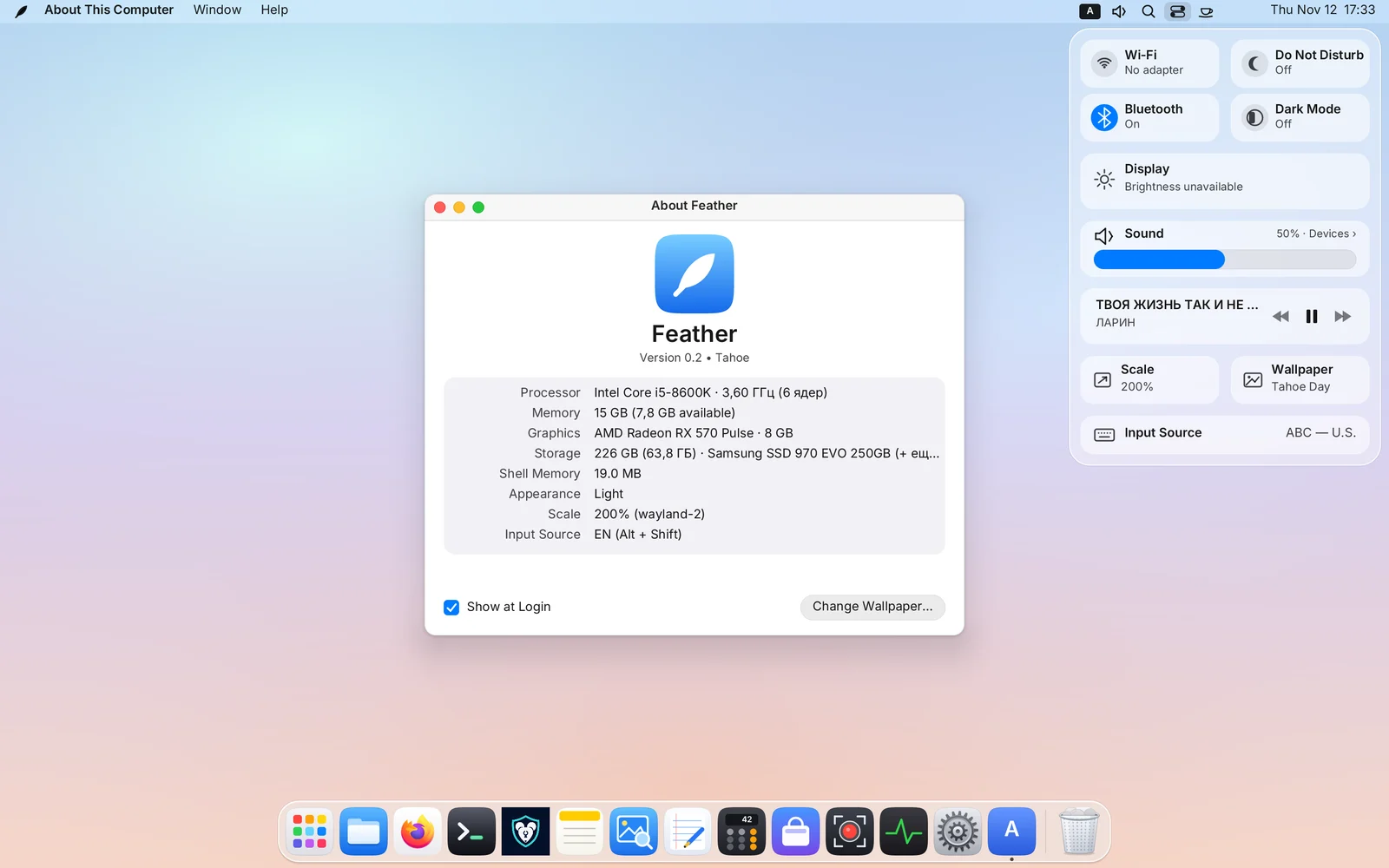
Click the switches icon in the top bar or press Super + N:
- Wi-Fi & Network Tile — toggle Wi-Fi in one click or open the nested Wi-Fi picker (with WPA2/WPA3 password entry) and VPN / WireGuard toggles.
- Bluetooth Tile — toggle the adapter and connect/disconnect headphones, mice, and speakers with battery indicators.
- Do Not Disturb & Night Shift — silence notification banners/sounds or warm up display color temperature for evening work.
- Display Brightness Slider — controls laptop backlights and external monitors via
DDC/CI. - Master Volume Slider & Quick Output Switcher.
Per-App Audio Mixer (Speaker Icon in Menu Bar)
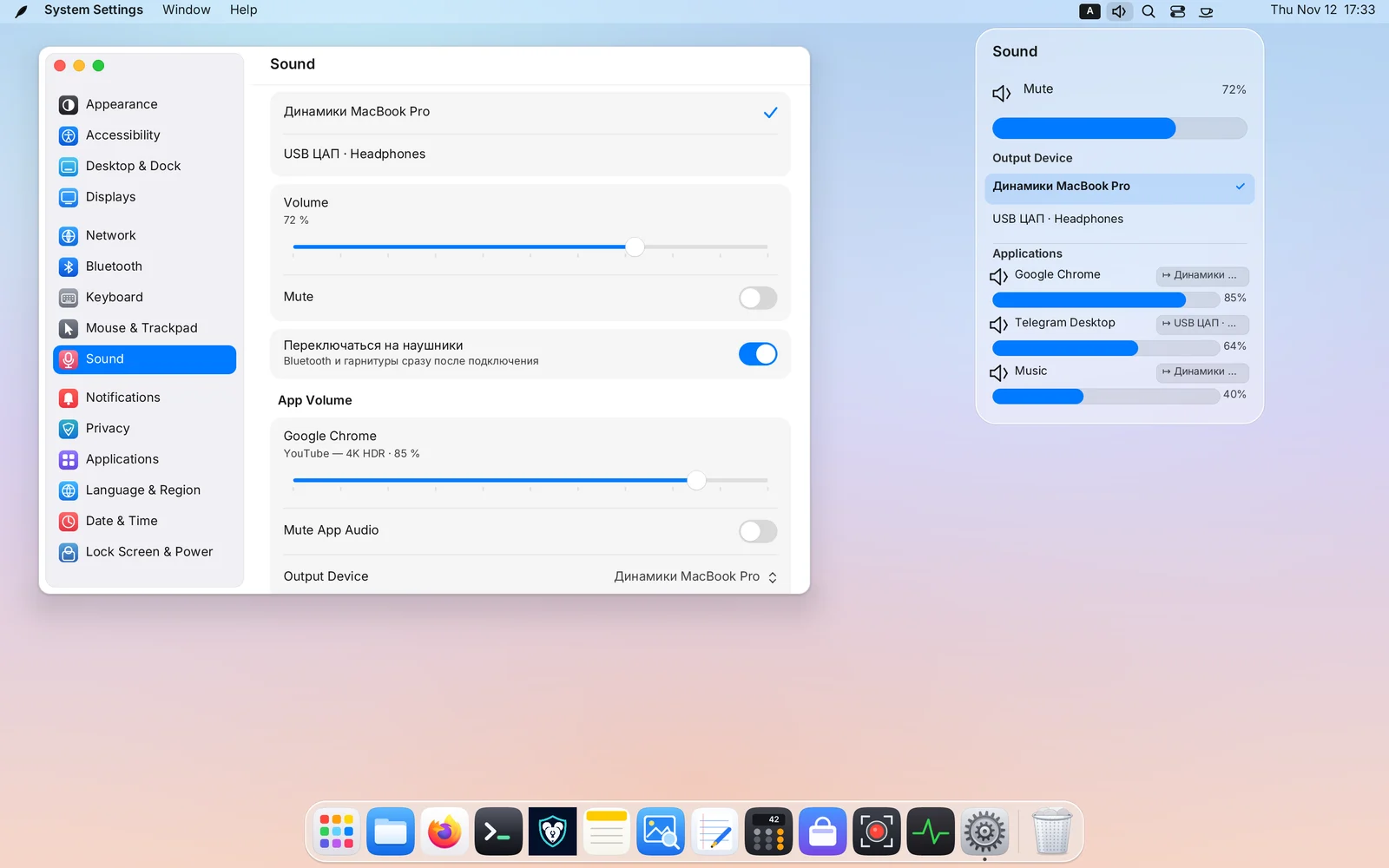
Click the speaker icon in the menu bar (or open Sound in Control Center / System Settings → Sound):
- Switch your default output device at the top (built-in speakers, HDMI display, USB DAC, or Bluetooth headset).
- Under Applications, every currently playing app (browser tab, Telegram voice chat, music player, game) gets:
- its own independent volume slider (
0–100%) and Mute button; - a route button (
↦) that moves only that specific app to a different output device (for example, keep music on speakers while routing voice chat exclusively to your headset!).
- its own independent volume slider (
Notification Center Drawer (Click the Clock)
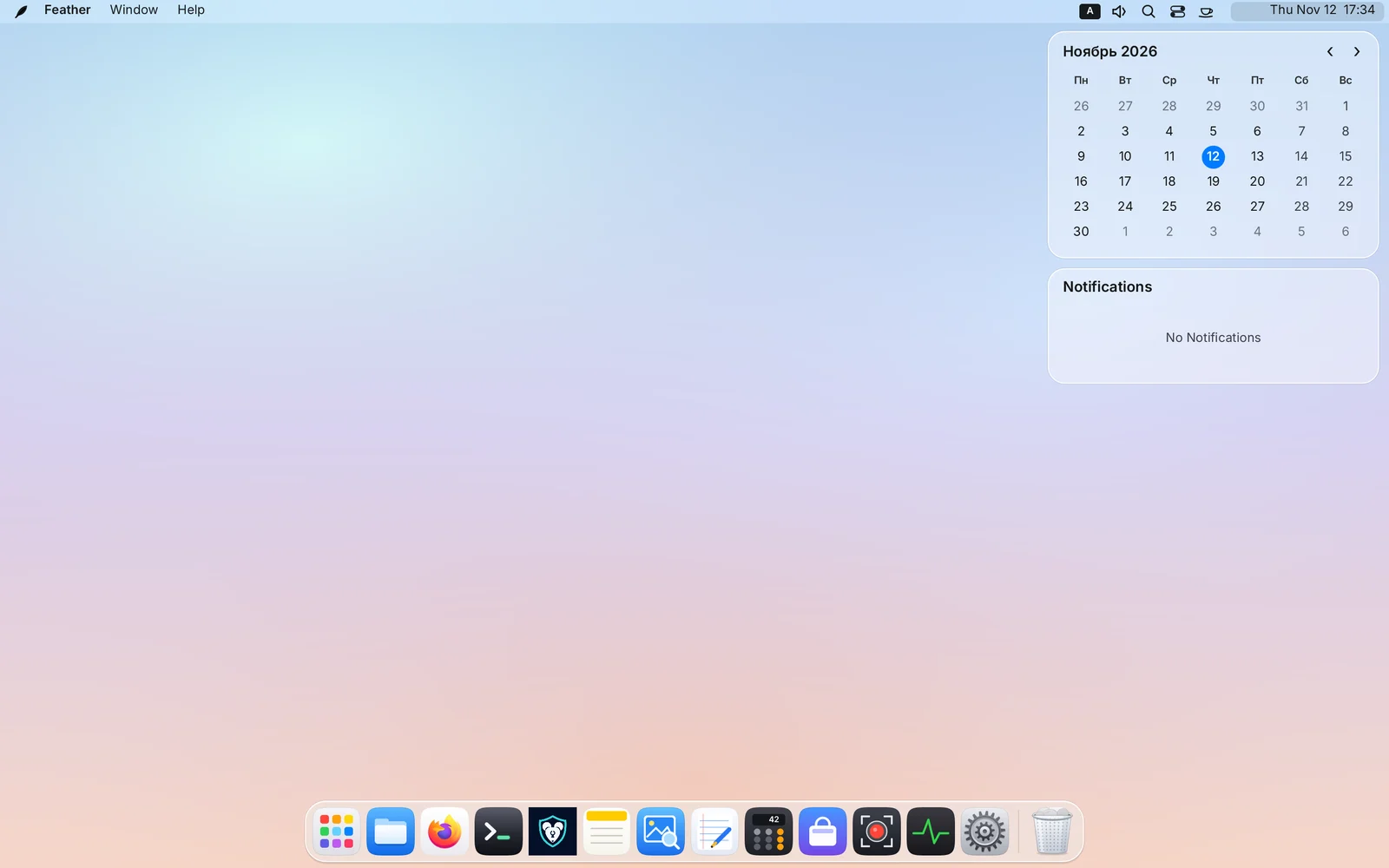
Click the date & time in the top-right corner to slide out Notification Center:
- Toggle Do Not Disturb at the top (also supports automatic night schedules in System Settings).
- Notifications are grouped cleanly by application, support interactive action buttons, and can be dismissed individually or cleared all at once.
8. Screenshots & Screen Recording (Print, Super + Alt + 5)
Fast capture tools are built right into the compositor — no external utilities required:
| Task | Shortcut | Behavior |
|---|---|---|
| Capture full screen | Print |
Saves to disk (Pictures or Desktop) and copies to clipboard |
| Capture selected region | Shift + Print |
Drag a selection rectangle (Esc cancels) |
| Capture active window | Alt + Print |
Cleanly captures the focused window |
| Screen Recorder HUD | Super + Alt + 5 (⌥⌘5) or Ctrl + Shift + Print |
Opens the recording bar: choose Full Screen / Region, MP4 / WebM, system audio, microphone, and cursor visibility |
- While recording, a red timer pill appears in the menu bar — click it (or press
Super + Alt + 5again) to finish and save the video. - Image format (
PNG,JPEG,WebP) and save folder are configurable in System Settings → Desktop & Dock. - OBS Studio, browser screen-sharing, and video calls work out of the box via Feather’s built-in PipeWire
xdg-desktop-portal(ScreenCast).
9. Native Feather Applications
Feather ships eight native Wayland applications written in Rust, sharing a unified look, light/dark themes, and near-instant cold startup:
- 📁 Files (
feather-files,Super + E)- Icon and sortable list views (by name, kind, date, size), sidebar favorites, mounted drives, and Trash.
- Quick Look (
Space): select any file (image, PDF, code, text, archive) and pressSpacefor an instant preview; use↑ / ↓ / ← / →to browse neighboring files without closing the preview! - Full Archive Support: extracts
ZIP(including legacy Windows Cyrillic encodings),7z,TAR.GZ / XZ / BZ2 / ZST, andRAR4 / RAR5(including multi-part and password-encrypted archives) with a progress card and cancel button. - Shortcuts:
Space— Quick Look,Ctrl + L— path bar,Ctrl + H— hidden files,F2— rename,Ctrl + Shift + N— new folder.
- ⌨️ Terminal (
feather-terminal,Super + EnterorSuper + T)- Custom DEC/ANSI/VT engine with TrueColor, tabs (
Ctrl + Shift + T), 10,000-line scrollback search (Ctrl + Shift + F), clipboard (Ctrl + Shift + C / V), full TUI support (htop,nvim,zellij,mc), and drag-and-drop path quoting.
- Custom DEC/ANSI/VT engine with TrueColor, tabs (
- 📝 Notes (
feather-notes)- Instant plain-text notes with search and autosave stored in
~/.local/share/feather-notes/(Ctrl + N— new,Ctrl + F— find,Ctrl + Z— undo), plus a built-in Quick Notes window in the shell.
- Instant plain-text notes with search and autosave stored in
- 🖼️ Preview (
feather-preview)- Fast viewer for
PNG,JPEG,WebP,SVG, and multipagePDFdocuments with page thumbnails, zoom, rotation, and panning.
- Fast viewer for
- 📄 Text Editor (
feather-textedit)- Tabbed code and text editor with line numbers, find & replace, and syntax highlighting (
Rust,Markdown,Python,Shell,JSON/YAML/TOML,C/C++,HTML/XML).
- Tabbed code and text editor with line numbers, find & replace, and syntax highlighting (
- 🧮 Calculator (
feather-calc)- Basic, Scientific, and Programmer (
BIN / OCT / DEC / HEX, bitwise ops8/16/32/64-bit) modes with calculation history.
- Basic, Scientific, and Programmer (
- 📈 Activity Monitor (
feather-monitor,Ctrl + Alt + Del)- Opens with
Ctrl + Alt + Del: inspect CPU/memory per process, search, End Task (Delete, orShift + Deleteto force-kill immediately), and watch live 60-second CPU, memory, disk, and network charts.
- Opens with
- 🛍️ App Store (
feather-store)- Unified catalog combining system packages (
PackageKit) and Flathub (Flatpak): one-click Flathub setup right from the Home or Search view,System Package / Flathubsource selector on app pages, and unified system + Flatpak updates.
- Unified catalog combining system packages (
10. System Settings (All 15 Sections)
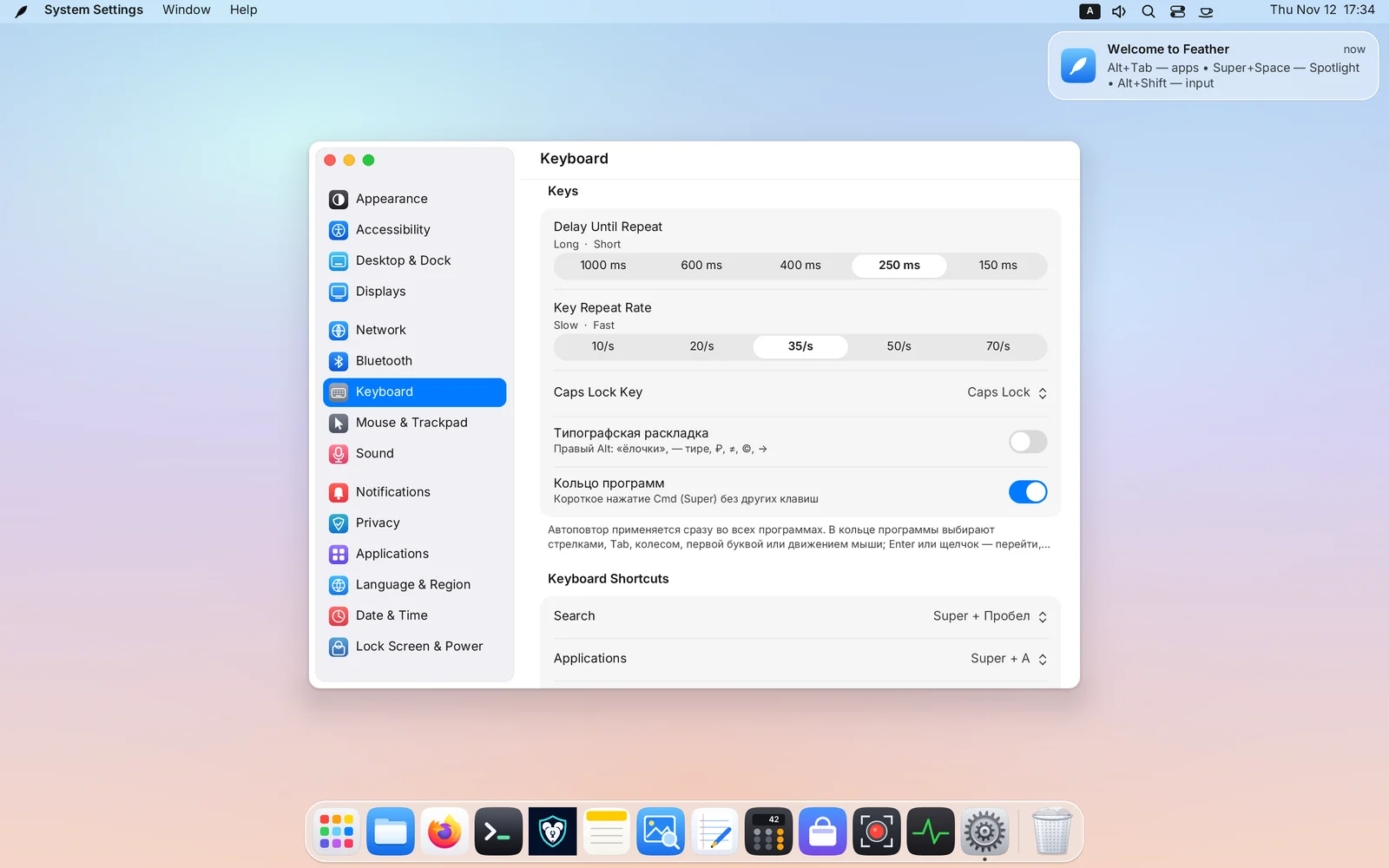
All desktop settings live in one unified window and save immediately to ~/.config/feather-de/settings.conf:
- Appearance — Light & Dark themes, accent and highlight colors, UI text size, GTK app styling sync, and spring animations.
- Accessibility — Large text, high contrast, reduced transparency, and Sticky Keys.
- Language & Region — Live UI language switching (
EN,RU,ES,DE,FR,ZH), 24-hour clock, first day of week, and measurement units. - Network — Wi-Fi networks, saved profiles, Ethernet, and VPN / WireGuard tunnels.
- Bluetooth — Device discovery, pairing, connection, and battery status.
- Keyboard — Input layouts, layout-switch shortcut (
Alt + Shift,Caps Lock,Ctrl + Shift,Win + Space),Caps Lockbehavior, repeat delay/rate,CmdApp Ring toggle, and customizable system keyboard shortcuts. - Mouse & Trackpad — Pointer speed, independent natural scrolling for mouse and trackpad, tap-to-click, left-handed buttons, cursor theme, and size.
- Displays — Fractional & HiDPI scaling (
100% … 250%, also cycled withSuper + =/Super + -), resolution & refresh rate, multi-monitor arrangement, primary display, XWayland/Wine HiDPI toggle, and scheduled Night Shift. - Desktop & Dock — Built-in & custom wallpapers (with timed rotation), Dock size, screen edge, auto-hide, screenshot folder/format, session window restore, and Hot Corners.
- Applications — Default browser, terminal, and file manager + Login Startup Apps.
- Privacy — Per-application screen-capture portal permissions.
- Date & Time — Searchable time zone picker and automatic
NTPsync. - Lock Screen & Power — Separate idle timers for screen lock (
Super + L), display blanking (DPMS), and system sleep. - Notifications — Per-app notification delivery policies and Do Not Disturb schedules.
- Sound — Output & input devices, mic gain, per-app audio mixer, alert tones, and automatic headphone switching.
11. Running Linux, X11 & Windows Apps (Wine / Proton / Gaming)
- Native Wayland, Flatpak, and Snap apps appear automatically in Launchpad, Spotlight, and the Dock as soon as they are installed.
- X11 applications (Steam, Discord, legacy tools) run seamlessly on demand via
xwayland-satellite— zero X11 overhead when no X11 apps are open. - Windows games & apps (Wine / Steam Proton):
- Full support for relative pointer motion and pointer lock/confine (
wp_pointer_constraints/wp_relative_pointer), smooth right-click MMO/FPS camera rotation, Variable Refresh Rate (VRR/ FreeSync), explicit GPU sync (wp_linux_drm_syncobj_v1), and Direct Scanout for fullscreen games. - Toggle dedicated XWayland HiDPI scaling in System Settings → Displays for crisp rendering in Wine/Proton titles on Retina/4K screens.
- Full support for relative pointer motion and pointer lock/confine (
12. CLI Automation (featherctl) & Complete Keyboard Shortcut Reference
featherctl Command-Line Control
Control workspaces, windows, audio streams, panels, and screenshots from scripts or terminals with featherctl (pass --json for structured output):
featherctl status                      # System summary
featherctl windows                     # List open windows across all desktops
featherctl spaces                      # List workspaces
featherctl space 3                     # Switch to Desktop 3
featherctl space-mode 0 tape           # Set current desktop to Scrollable Ribbon (free | tile | tape | next)
featherctl window pip 0 on ghost       # Pin active window in Ghost PiP (click-through)
featherctl menu-hud toggle             # Toggle Menu HUD command search
featherctl shelf add ~/Report.pdf      # Stash a file on the Glass Drop Shelf
featherctl audio streams               # List playing app audio streams
featherctl audio app-volume 41 60      # Set stream #41 volume to 60%
featherctl display dark toggle         # Toggle Dark / Light mode
featherctl screenshot screen           # Take a full-screen screenshot and print the file path
See docs/API.md for the full org.feather.Shell1 D-Bus specification.
Complete Keyboard Shortcut Cheat Sheet
Built-in Cheat Sheet inside the OS: press
Super + Shift + /(Super + ?) orSuper + F1(or open🪶 Feather → Keyboard Shortcuts…/Help → Feather Keyboard Shortcuts) at any time to open the interactive cheat sheet window with category tabs and instant search.
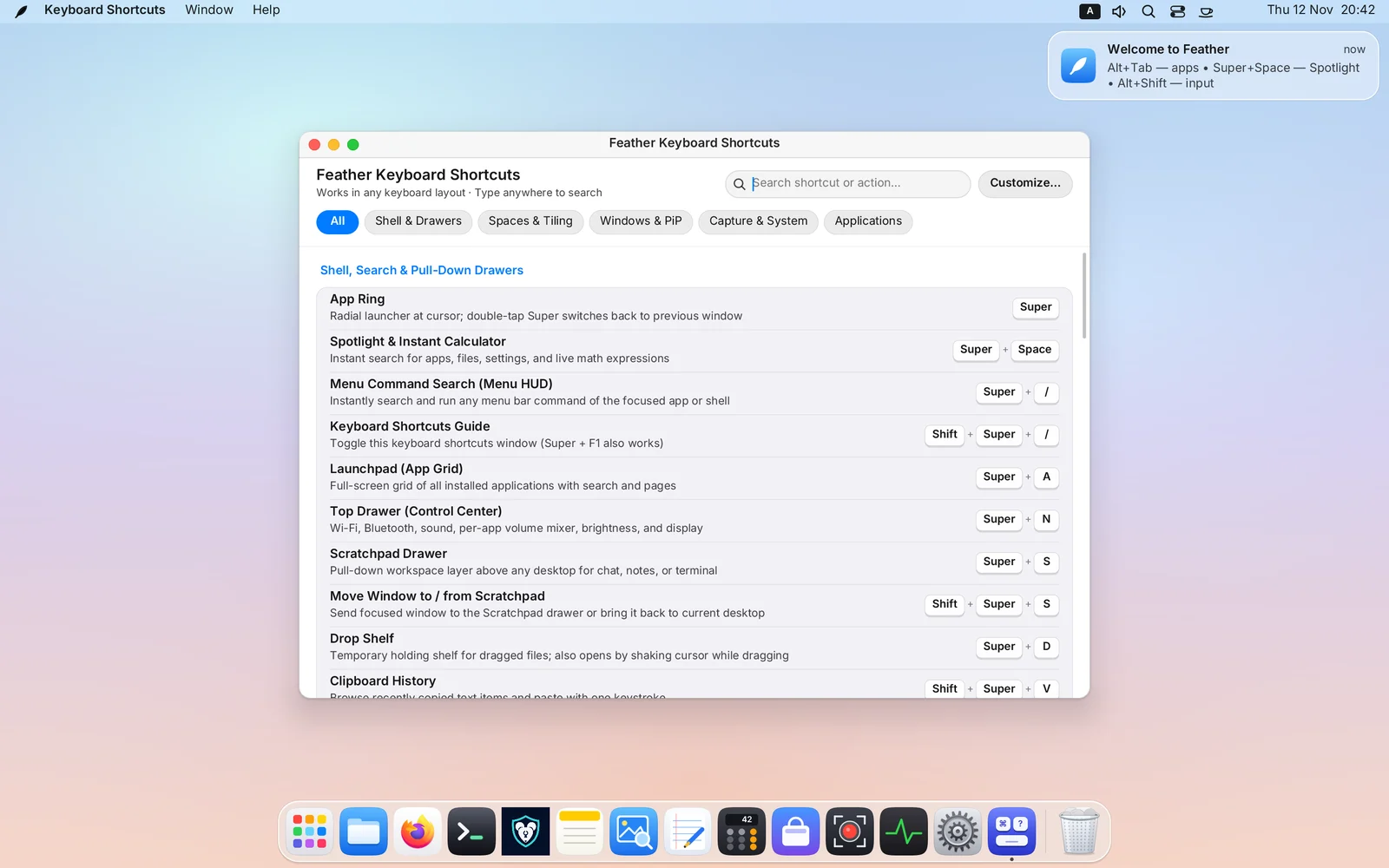
Shell, Search & Drawers
| Shortcut | Action |
|---|---|
Super (single short tap) |
Open radial App Ring (Super, Super switches back to previous window) |
Super + Space |
Spotlight search (apps, windows, files, settings, live calculator) |
Super + / |
Menu HUD — instant search across active window menu commands |
Super + Shift + / / Super + F1 |
Keyboard Shortcuts Guide — interactive cheat sheet window with live search |
Super + A |
Launchpad application grid |
Super + N |
Control Center top drawer (Wi-Fi, Bluetooth, sound, brightness) |
Super + S / Super + Shift + S |
Toggle Scratchpad drawer / move focused window to or from Scratchpad |
Super + D (or shake pointer while dragging) |
Toggle Glass Drop Shelf |
Super + Shift + V |
Clipboard History picker |
Super + . |
Emoji picker |
Super + Enter / Super + T |
Open Terminal |
Super + E |
Open Files |
Ctrl + Alt + Del |
Open Activity Monitor |
Super + L |
Lock Screen |
Super + = / Super + - |
Cycle HiDPI display scale |
Windows & Ghost PiP
| Shortcut | Action |
|---|---|
Alt + Tab / Super + Tab |
Application switcher (MRU order) |
Alt + ` / Super + ` |
Cycle windows of the active application (+ Shift reverses) |
Super + W / Super + Q |
Close window / quit application |
Super + M / Super + F |
Minimize window / maximize (or zoom tile/column) |
Super + H / Super + Alt + H |
Hide active app / hide all other apps |
Ctrl + Super + ← / → / ↑ / ↓ |
Snap floating window to screen halves or quarters |
Super + P |
Toggle Picture-in-Picture (PiP) corner pin across all desktops |
Super + Alt + P |
Toggle Ghost PiP (Click-Through) (hold Super to drag/resize) |
Super + Left-Drag / Super + Right-Drag |
Move window from anywhere / resize window |
Workspaces, Auto-Tiling (Tile) & Scrollable Ribbon (Tape)
| Shortcut | Action |
|---|---|
Super + 1…9 (Cmd + 1…9) |
Jump directly to Desktop 1…9 (creates on the fly, prunes empty trailing desktops) |
Super + Shift + 1…9 |
Carry active window directly to Desktop 1…9 and follow it |
Ctrl + Alt + ← / → (or 3-finger swipe) |
Previous / next workspace |
Ctrl + Alt + Shift + ← / → |
Carry active window to adjacent workspace |
Ctrl + Alt + ↑ / Ctrl + Alt + ↓ |
Open / close Mission Control overview |
Ctrl + Alt + M |
Cycle current desktop mode: Free Windows → Auto-Tiling → Scrollable Ribbon |
Super + ← / → / ↑ / ↓ (in Tile / Tape / Scratchpad) |
Focus adjacent tile or ribbon column |
Super + Shift + ← / → / ↑ / ↓ |
Swap tiles/columns (rotates split axis at outer edge in Tile) |
Ctrl + Super + ← / → / ↑ / ↓ (or Alt + Super + …) |
Smoothly resize tile split or column width |
Super + Mouse Wheel / Trackpad (in Tape) |
Smooth horizontal scrolling of the Scrollable Ribbon |
Super + R (in Tape) |
Cycle ribbon column width preset: 50% → 67% → 100% → 33% |
Super + Home / Super + End (in Tape) |
Jump to first / last column in the ribbon |
Super + 0 |
Equalize all tile splits or ribbon column widths (50 / 50) |
Screenshots, Screen Recording & Session
| Shortcut | Action |
|---|---|
Print / Shift + Print / Alt + Print |
Screenshot full screen / region / active window |
Super + Alt + 5 (⌥⌘5) / Ctrl + Shift + Print |
Open Screen Recorder HUD (MP4 / WebM with audio) |
Ctrl + Alt + F1…F12 |
Switch Linux virtual terminals (TTYs) in DRM mode |
Ctrl + Alt + Backspace |
Emergency session exit |